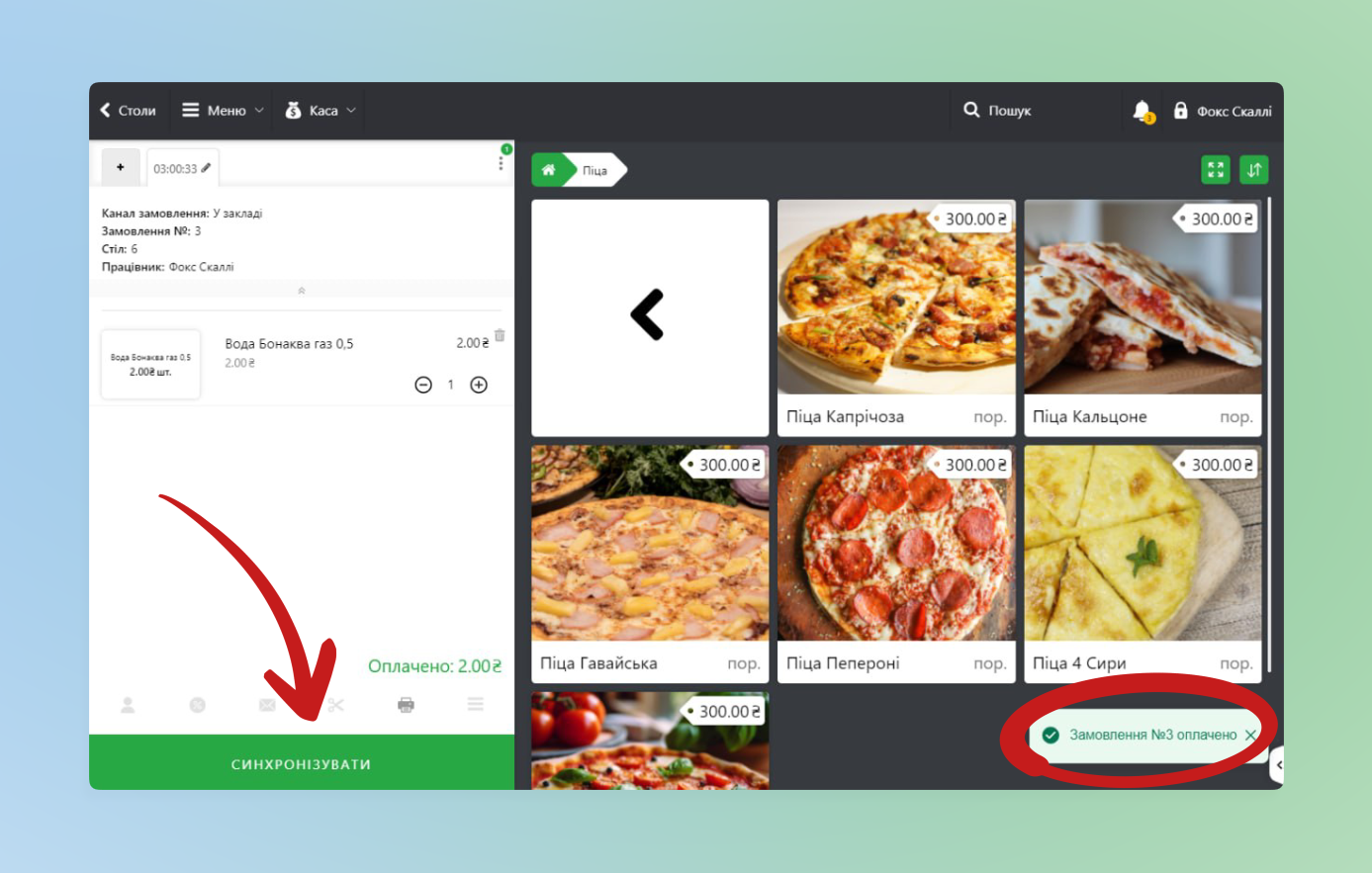
QR Pay – an application that allows accepting cashless payment using a QR code, which is transferred to the buyer on a printed receipt.
Admin panel – activation and setup
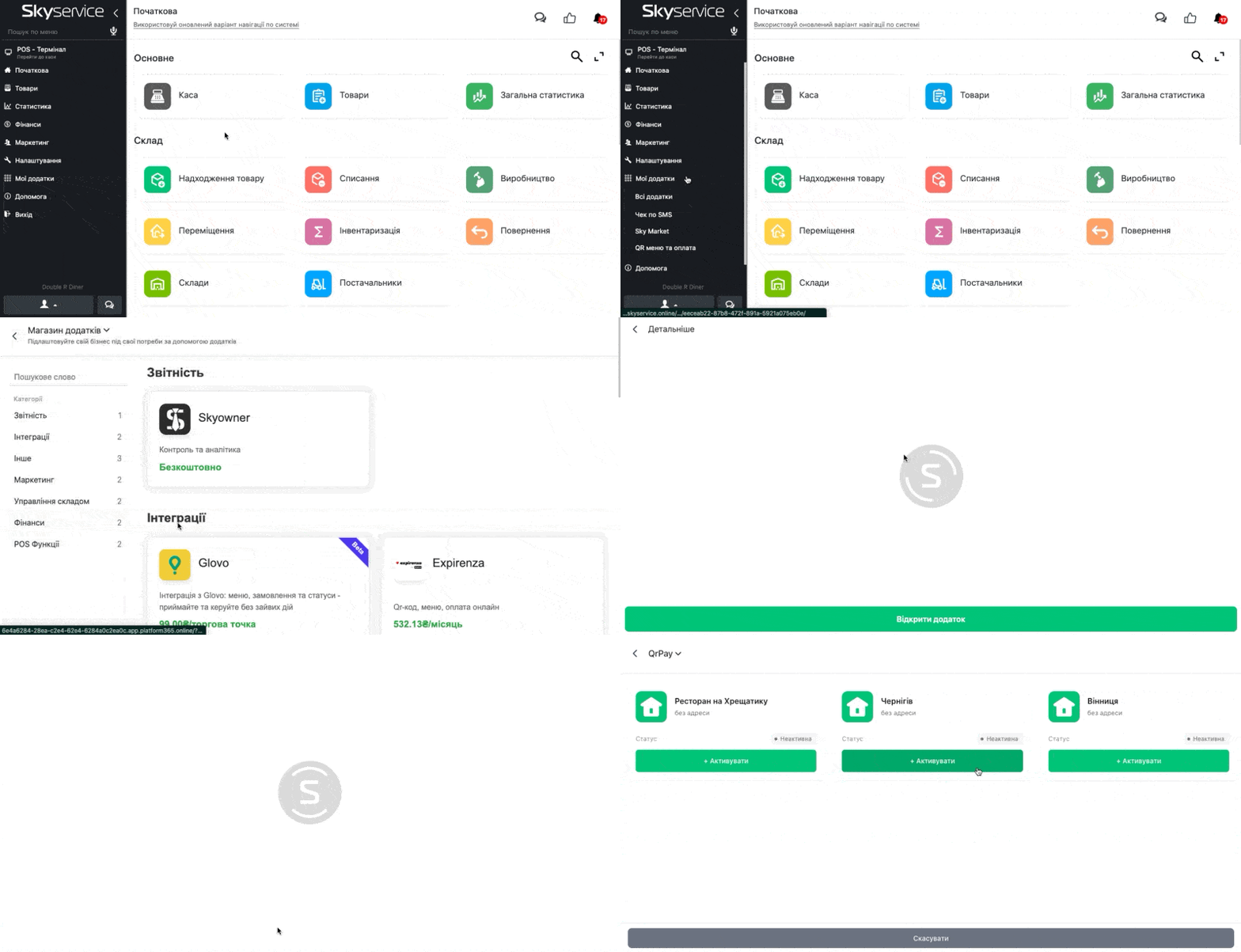
To activate the app:-
- Go to the section My apps
-
- Select QR Pay → click Open app
-
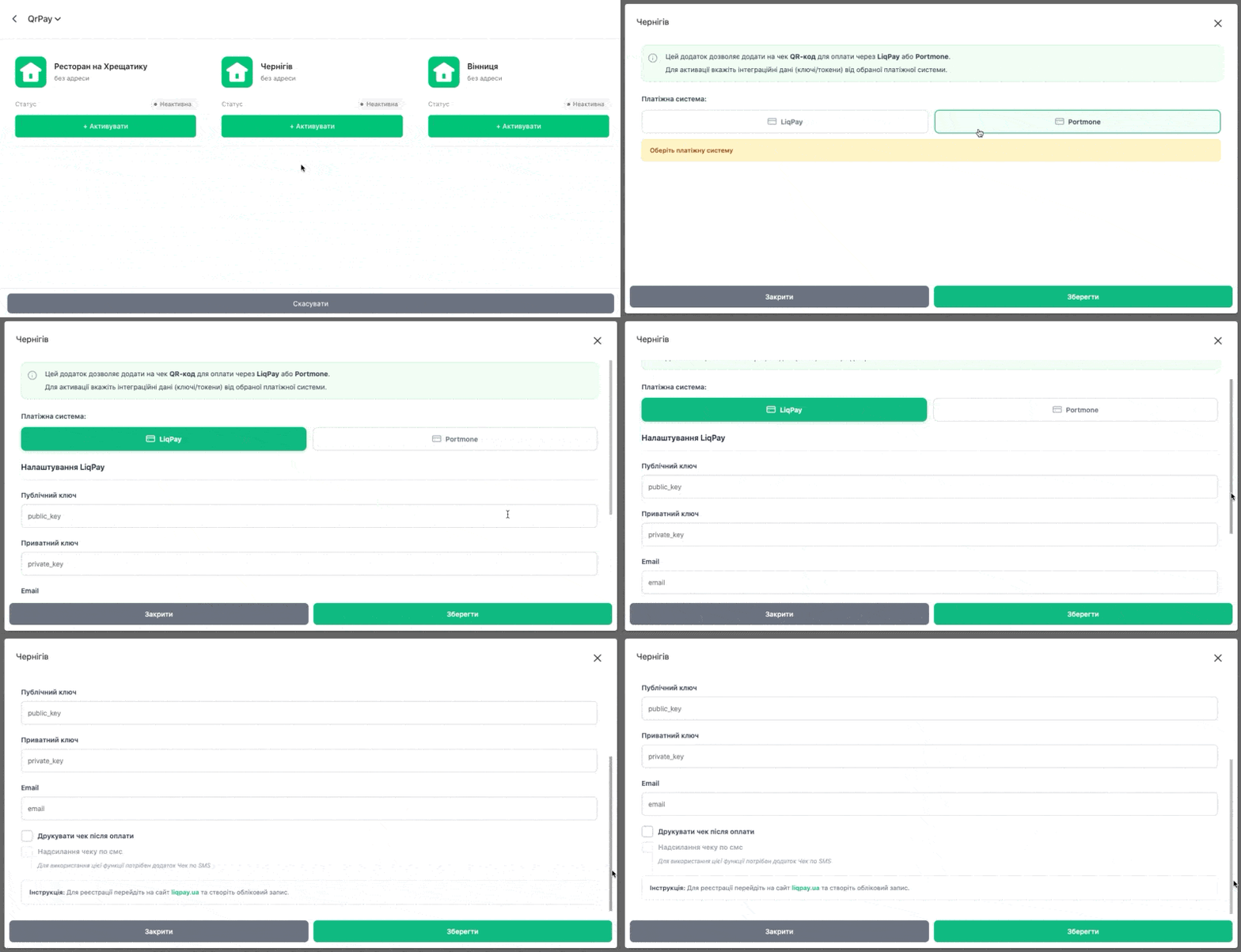
- Next select the Sales point where this app will be active, by clicking + Activate and set the required Payment system
Accepting payments via QR code is possible only through the payment systems LiqPay and Portmone. Therefore, for the QR Pay app to work, you need to be registered in one of the payment systems and specify the corresponding tokens or keys
-
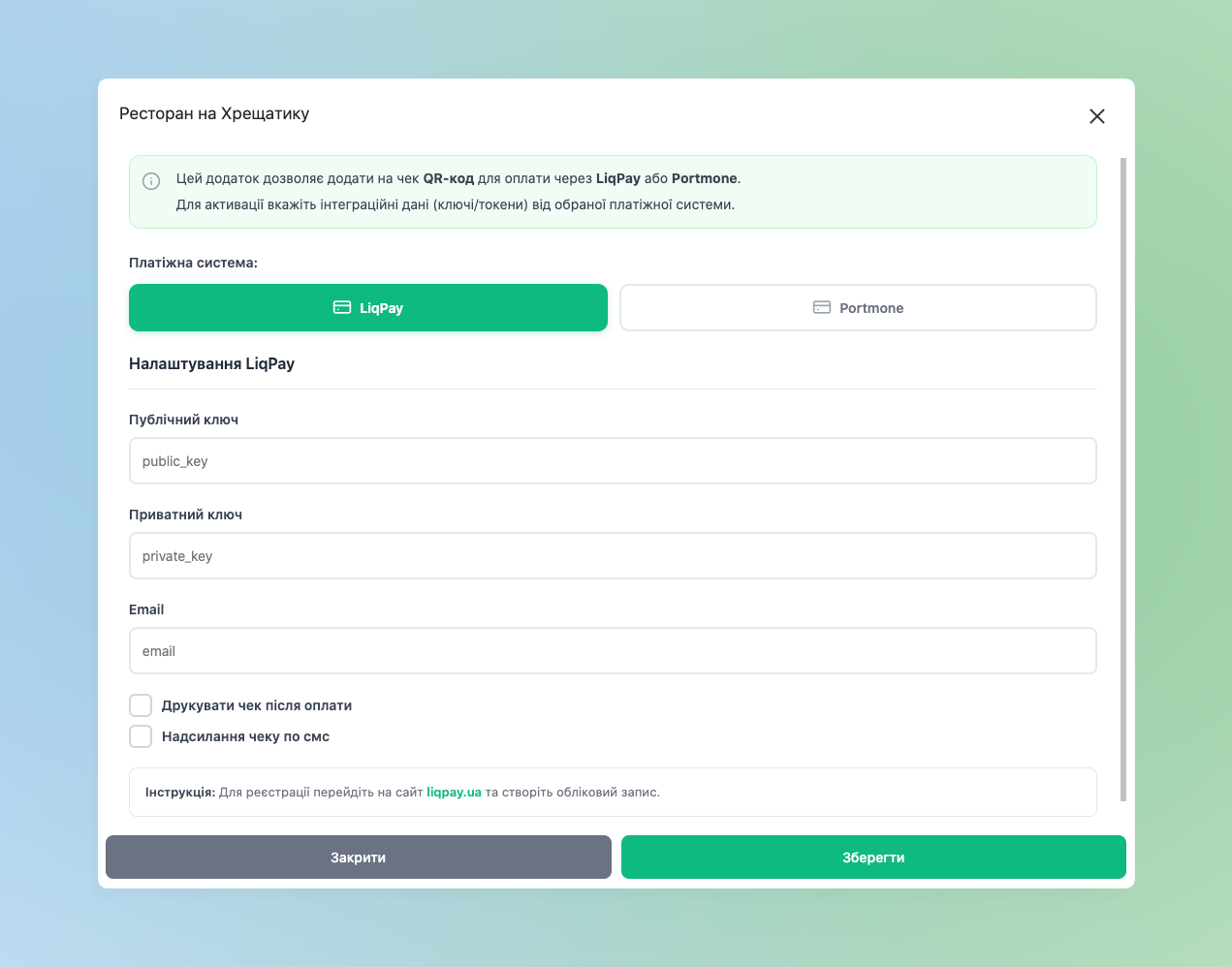
- LiqPay – to set up you need to:
-
- Register on the LiqPay main site
-
- After registration in the LiqPay personal cabinet obtain the following data: public_key, private_key
-
- Next enter this data in the program in the corresponding fields in the QR Pay
-
- LiqPay – to set up you need to:
-
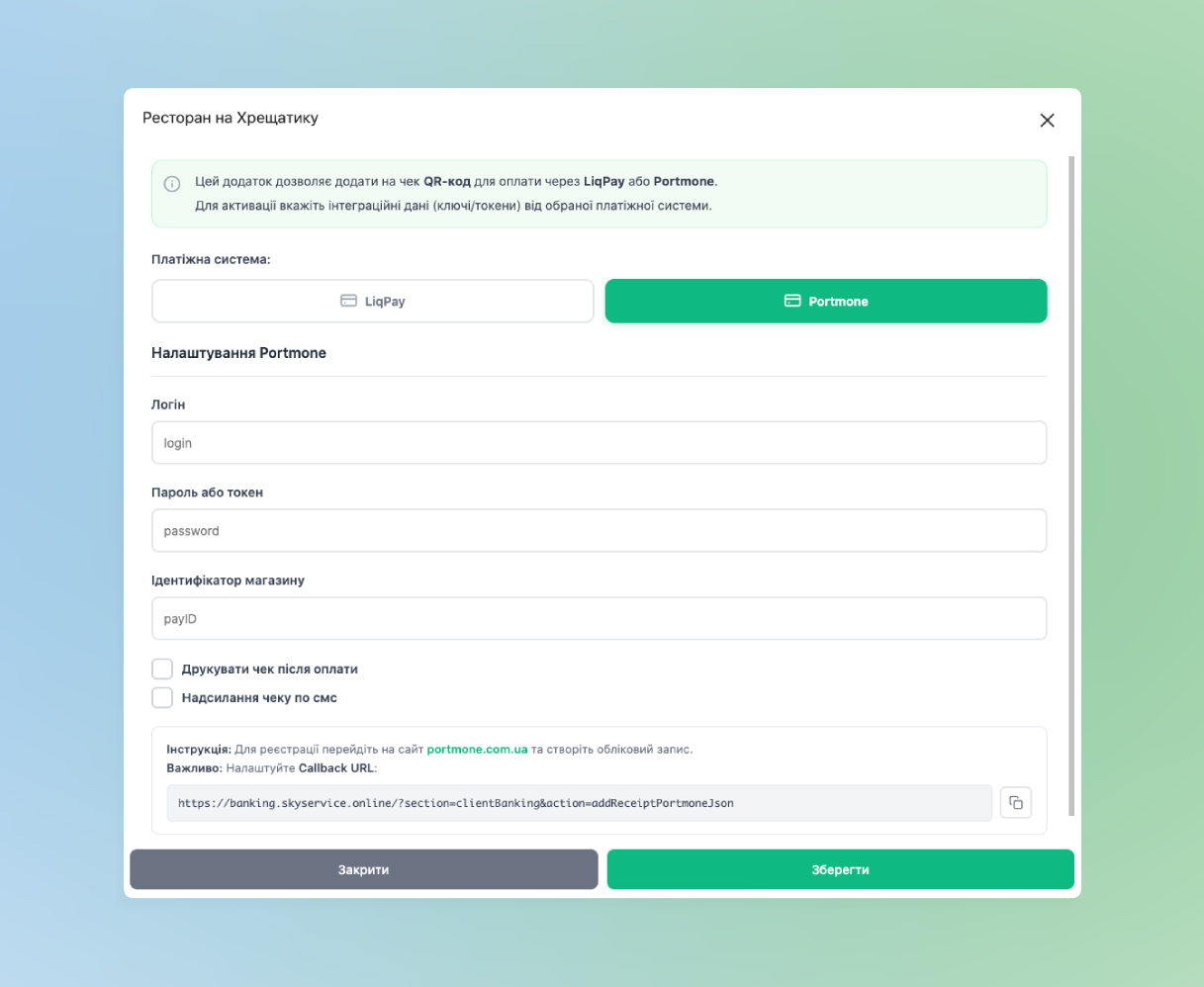
- Portmone – to use this payment system you need to:
-
- Register on the Portmone main site
-
- After registration in the Portmone personal cabinet obtain the following data: Login, Password, PayID
-
- Next enter this data in the program in the corresponding fields in the QR Pay
-
- settings. Additionally, for working with Portmone you need to have configured Callback URL. To do this copy the link that is specified just below the settings in the program and provide it to Portmone
-
- Portmone – to use this payment system you need to:
-
- Print receipt after payment – the receipt will be issued in printed form from the receipt printer
-
- Send receipt via SMS – the sales receipt will be sent to the buyer via SMS or Viber
-
- Additionally, to send receipts via SMS after payment via QR code, the Receipt via SMS app must be configured. You can learn more about this app at the link
-
- Send receipt via SMS – the sales receipt will be sent to the buyer via SMS or Viber
POS terminal – printing QR code and making a sale
❗️Be sure to note: the QR code is printed specifically on the Pre-check. To print it in the POS terminal in the section Menu → Devices go to the printer settings and in the “What to print?” block set the setting to print Pre-check.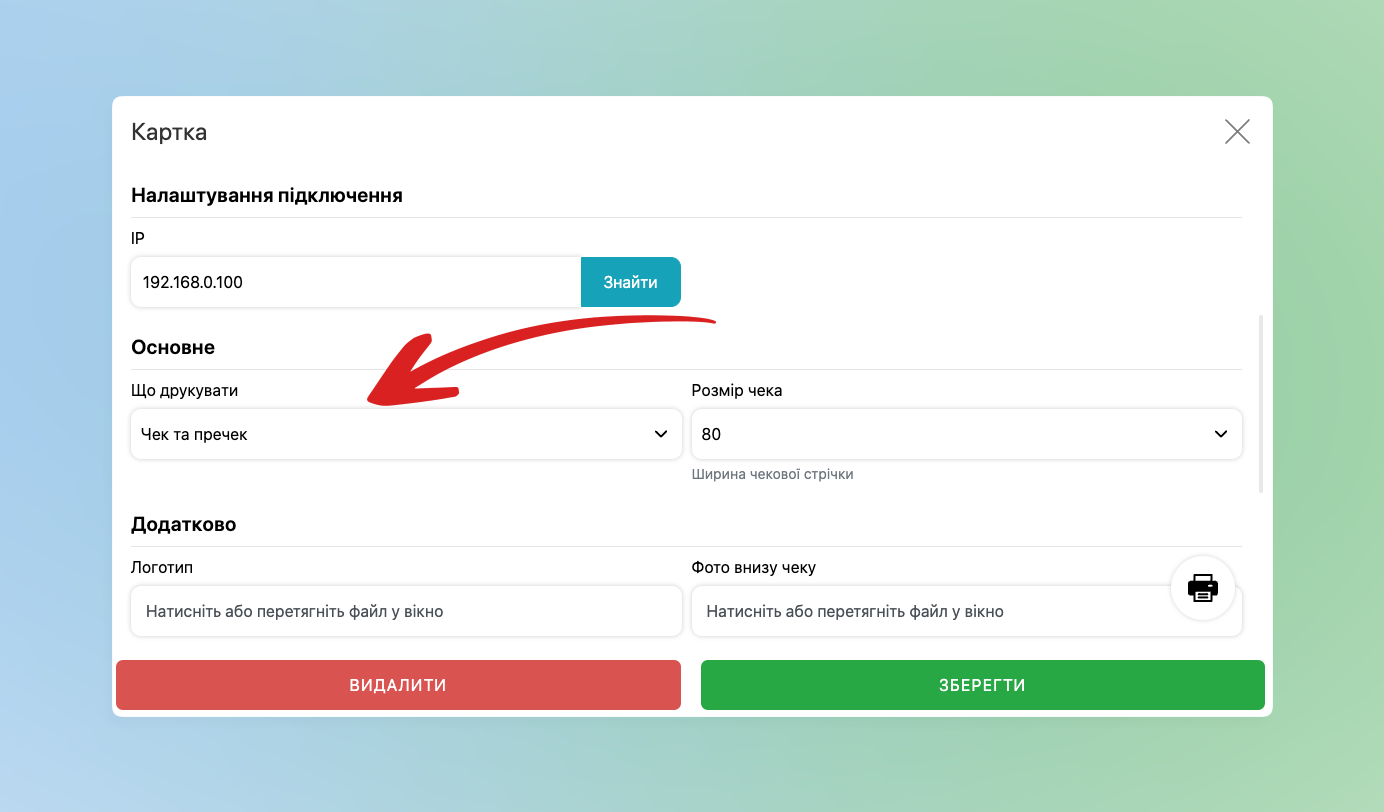
-
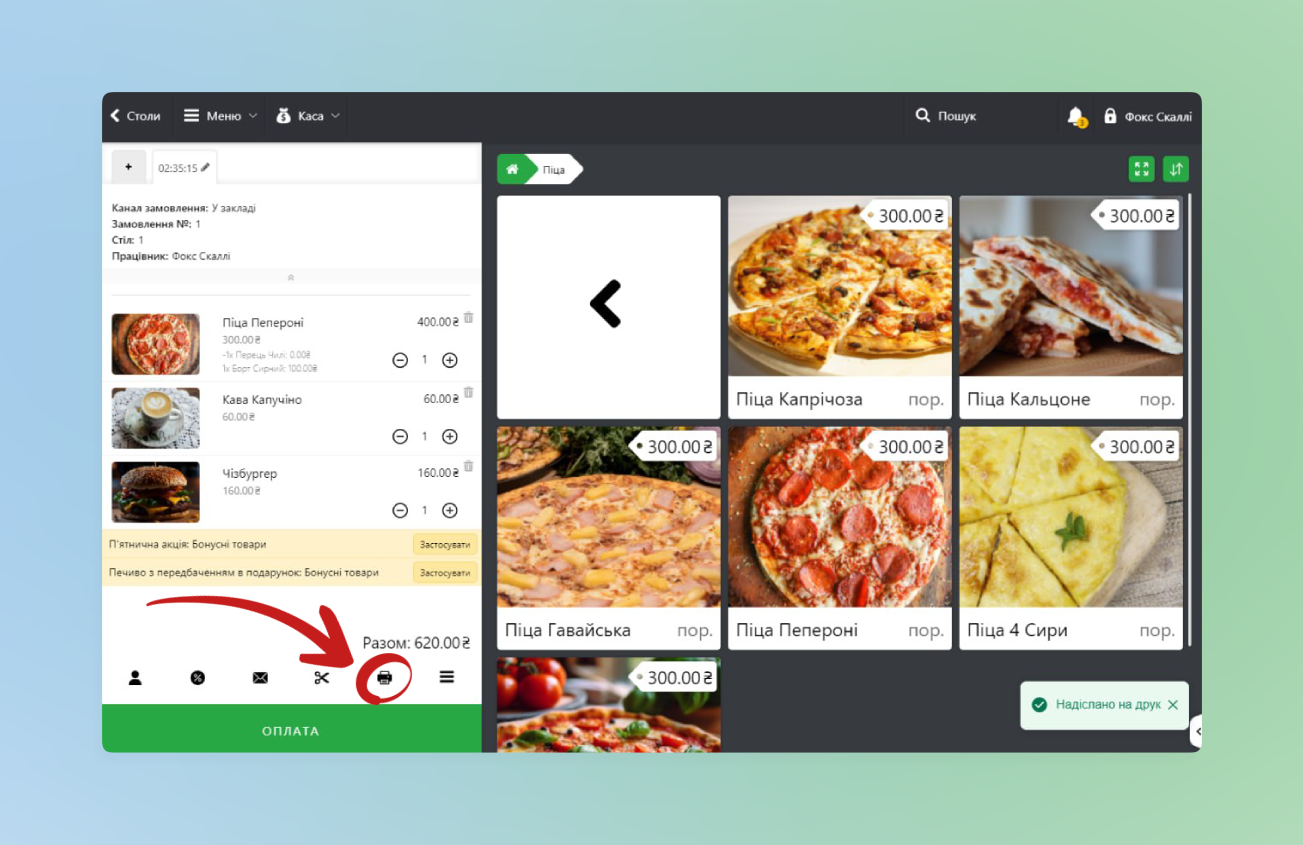
- Next to print the QR code and for the buyer to pay for it, the cashier needs to click the print pre-check button
-
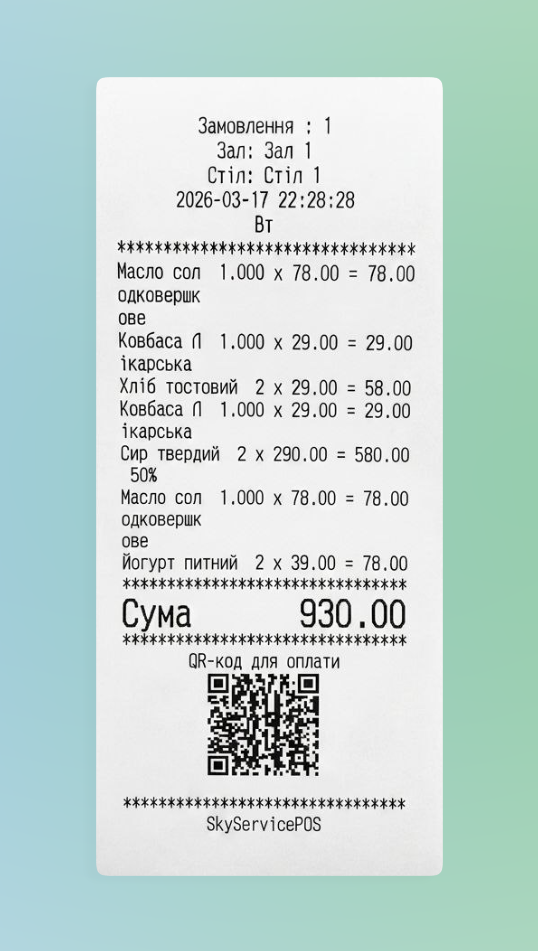
- After which a receipt with a QR code will be printed, which the buyer scans to pay
-
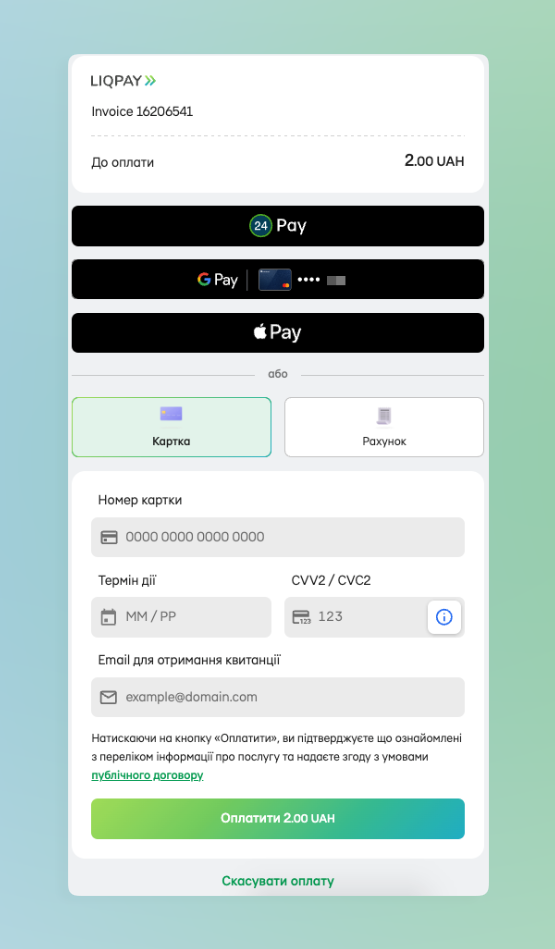
- Next the client will be redirected to the payment window of the previously configured Payment system, where they choose a convenient cashless payment method for themselves
-
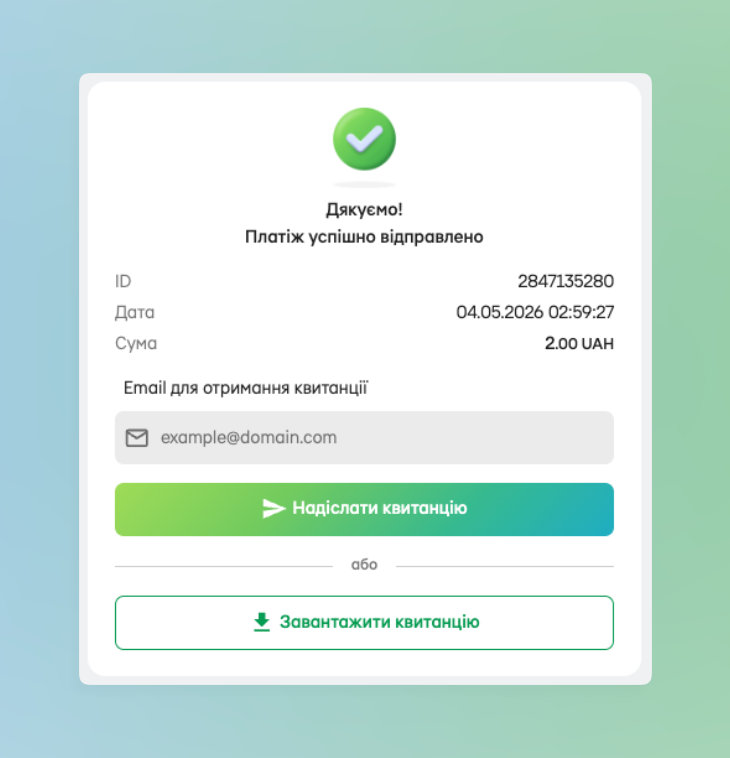
- After successful payment, the client will see a window with notification of successful payment, where they can download the receipt or send it to email
-
- The POS terminal, in turn, will receive a notification about successful payment of the order, and it will only remain to click Synchronize to mark the order as sold