
SUPA – a solution for accepting payments via QR code in Poland. Integration takes place with the restaurant POS system and allows guests to view their orders, split them and pay.
What to do before connecting SUPA to Skyservice
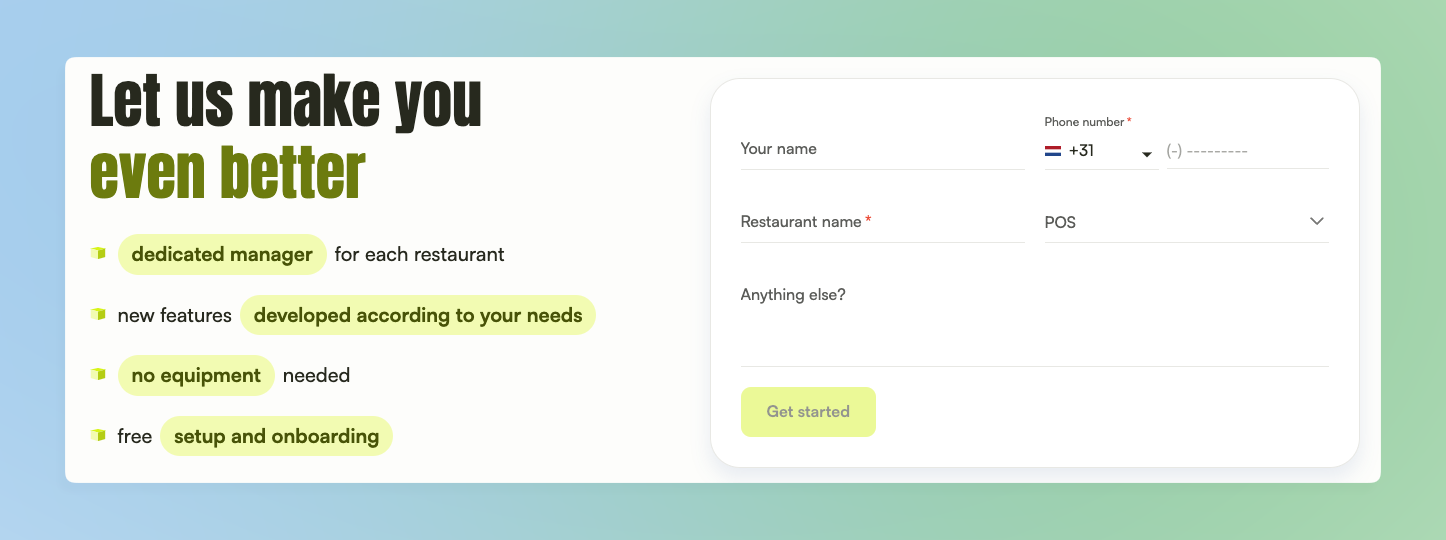
- Before adding the module in Skyservice, first fill out a short form on the SUPA main page, after which within 24 hours their manager will contact you and clarify additional matters and necessary details for logging in to the SUPA personal cabinet
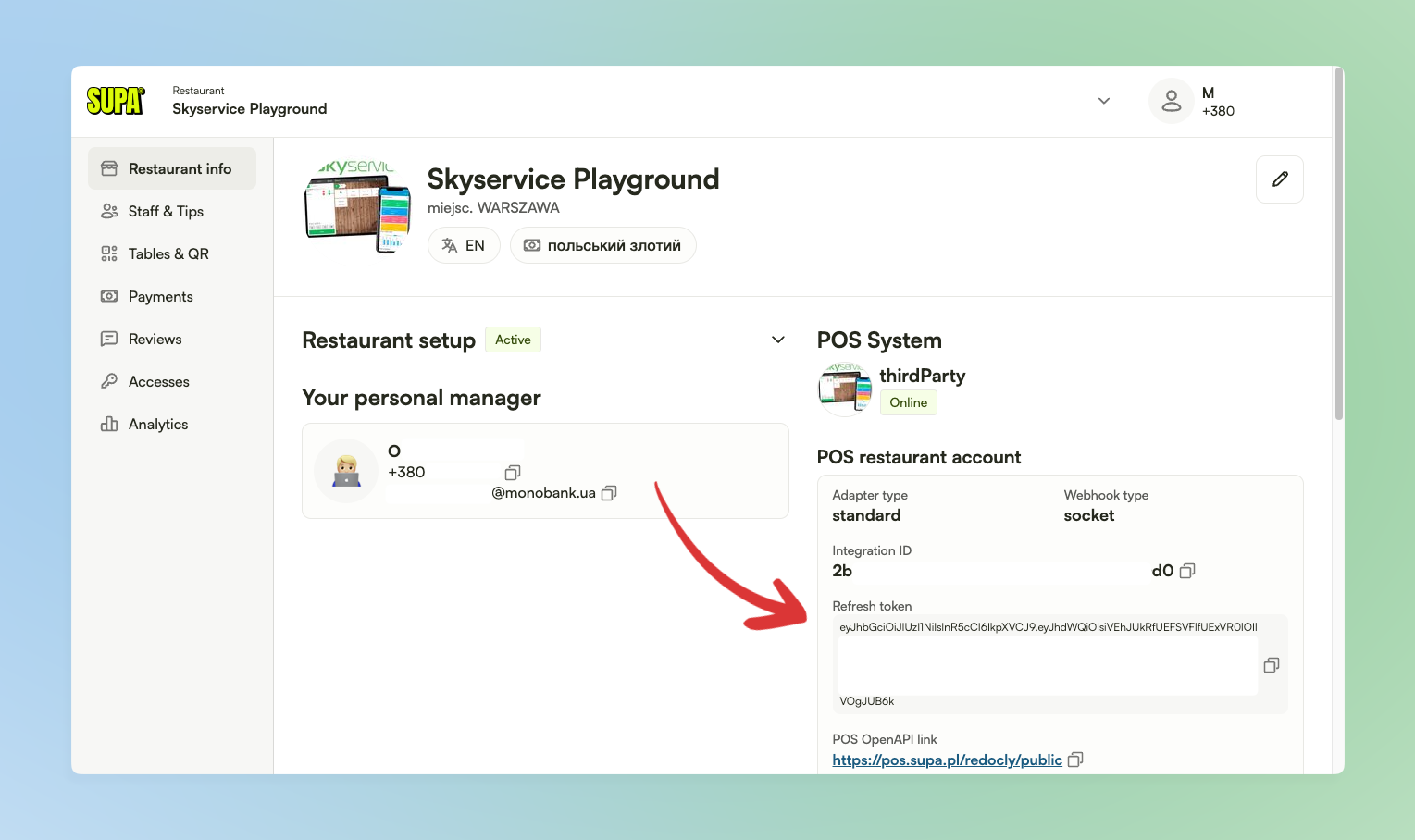
- After that, in the SUPA personal cabinet on the informational page about the venue you will see the field “Refresh token”. Copy it for the next step of adding the module in Skyservice
Connecting SUPA to Skyservice
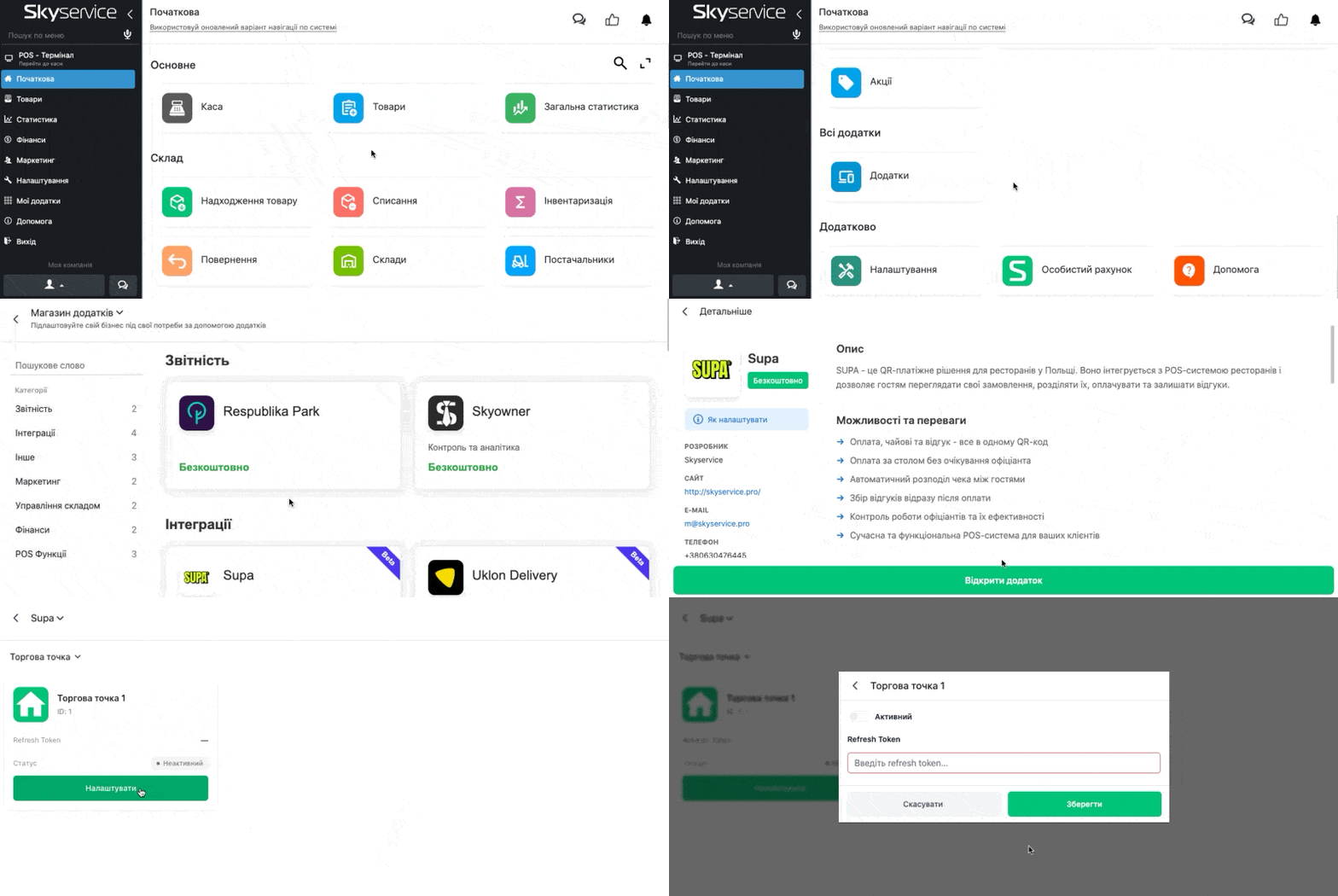
- In the Admin panel go to the section Home
- In the All apps block click Apps → View all programs → select from the list SUPA
- In the next window you can read additional information about the app’s operation
- Click Open app
- For the required point click Configure → next enter the “Refresh token” that was previously copied in the SUPA personal cabinet
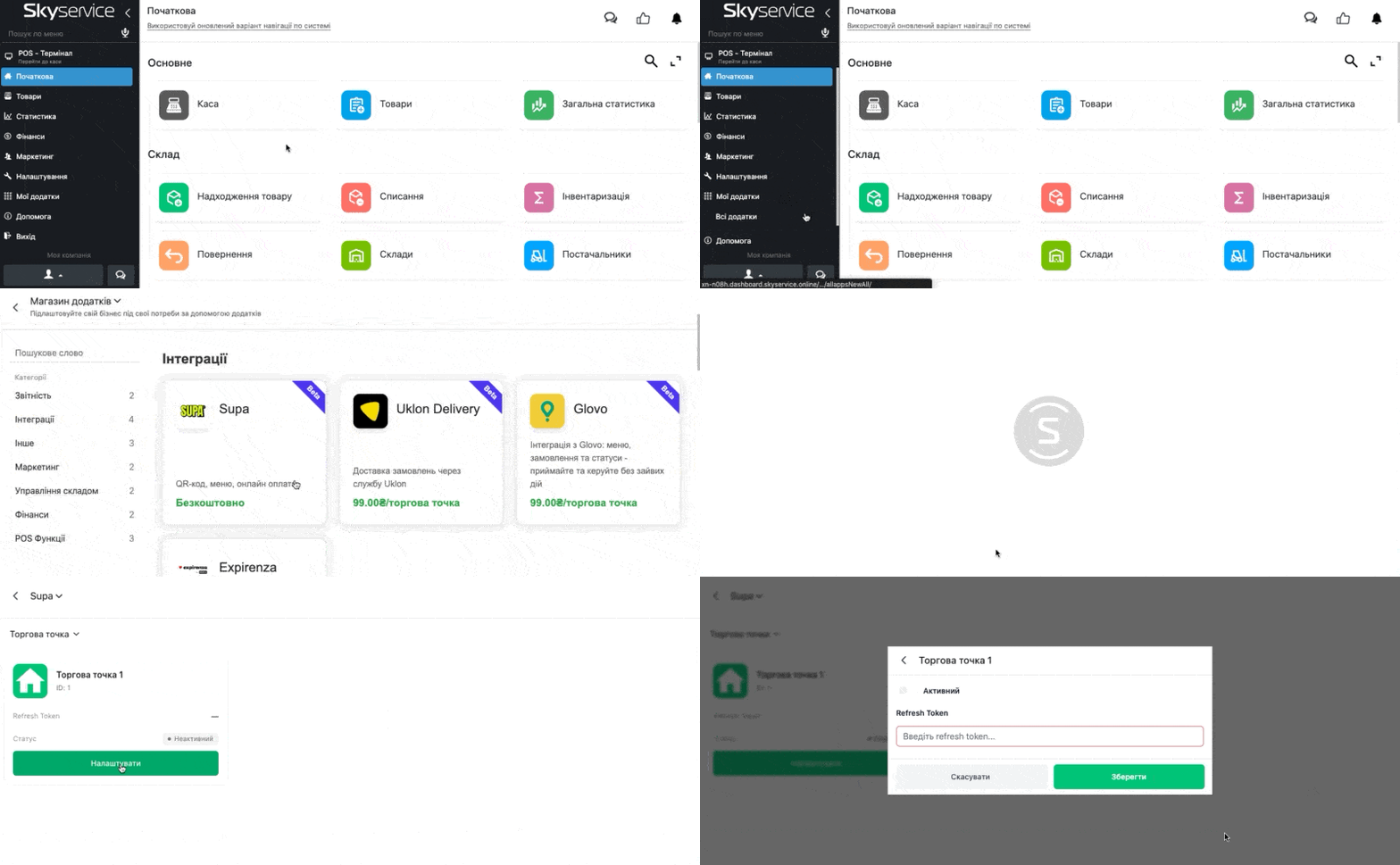
- Or in the Admin panel on the side go to the section My apps → All apps → select from the list SUPA
Additional settings in Skyservice and SUPA
To use the module, first configure Halls and Tables.
- Before activation, make sure that in the Admin panel in the section Settings:
- All Halls for the sales point/points are created
- Added Tables with specified capacity
❗️After adding the settings for the hall, additionally perform the following actions:
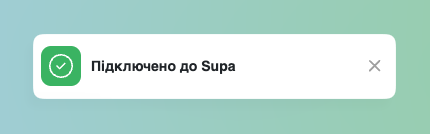
- Go to the POS terminal → next you will see a message about successful connection
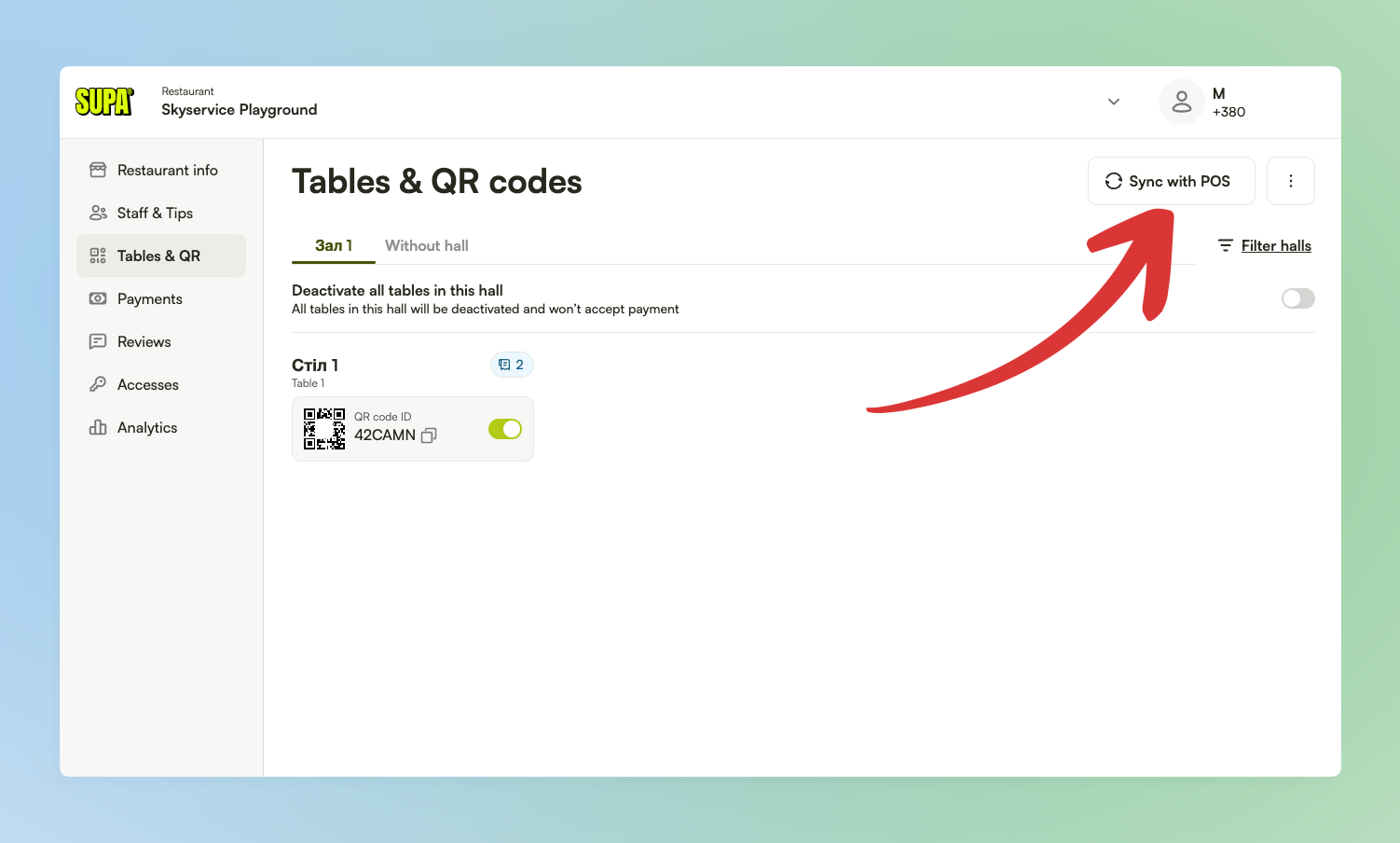
- After that in the SUPA personal cabinet go to the section “Tables & QR” → click Sync with POS
- Next, within a few minutes, the data about the halls and tables settings will be updated on the side of the personal cabinet SUPA
- When you see the correct display in the SUPA personal cabinet → additionally restart the POS terminal in Skyservice
❗️Note – QR codes are provided specifically by SUPA → their printed appearance and how exactly is discussed directly with SUPA.
More details about connection and payment statuses
After all necessary settings, the cashier in the POS terminal can see the following messages regarding connection and payment status:
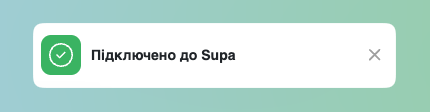
- With correct settings and successful connection, when going to the POS terminal, at the bottom right you will see the status “Connected to Supa” and payment via QR code will proceed correctly
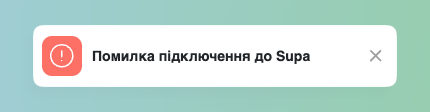
- If the Refresh token was entered incorrectly – at the bottom right a notification appears “Error connecting to Supa” – you need to check the correctness of the token entry and restart the POS terminal
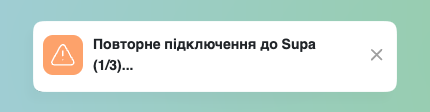
- If the internet network was unstable – an additional message about “Reconnecting to SUPA” will arrive. If after the third attempt it was not possible to connect – check the internet network operation and restart the POS terminal
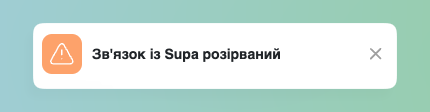
- If a correct internet connection was not established, you will see the notification that “Connection to SUPA is broken”
- This notification also occurs after closing the shift, because accepting payment via QR code is possible only with an open shift
- Additionally, if the app is minimized for a long time – the connection is also automatically broken
❗️Note: for correct operation the POS terminal must always be open. If the POS terminal is in a minimized state for too long, i.e., not open on the screen – the point becomes inactive and the connection with SUPA is automatically broken.
If you need to continue working after these actions – restart the POS terminal.
If you need to continue working after these actions – restart the POS terminal.
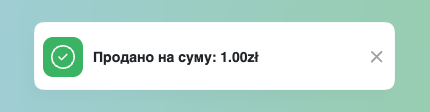
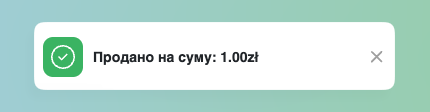
- Upon successful payment, an additional message appears “Sold for the amount: n zł”.
- No notifications arrive about cancelled or failed payments – the receipt will be processed automatically when the buyer completes a successful transaction via QR code or when the cashier independently closes the order
Creating an order in the POS terminal and paying for it
- In the POS terminal the cashier adds items to the order as usual
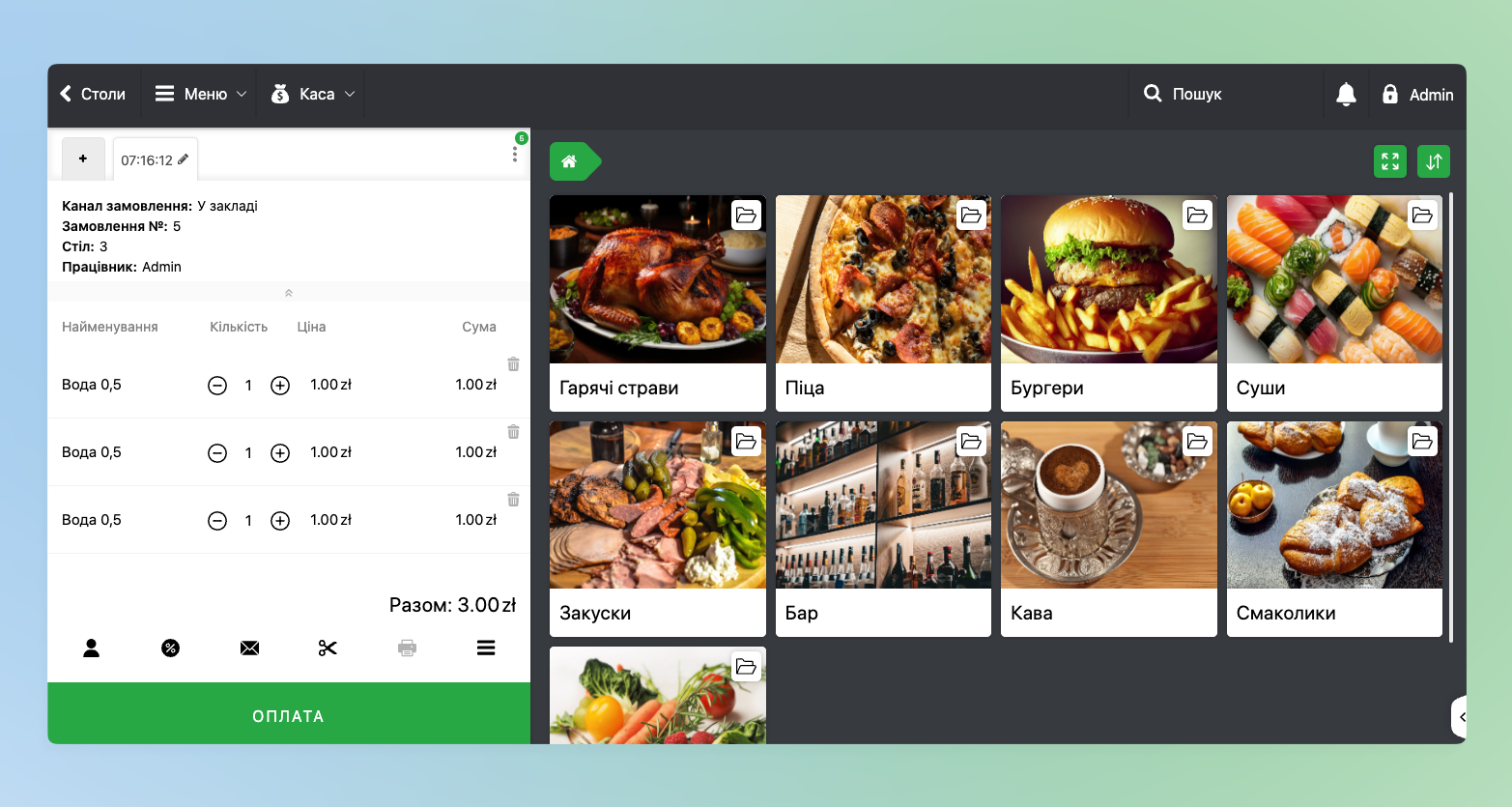
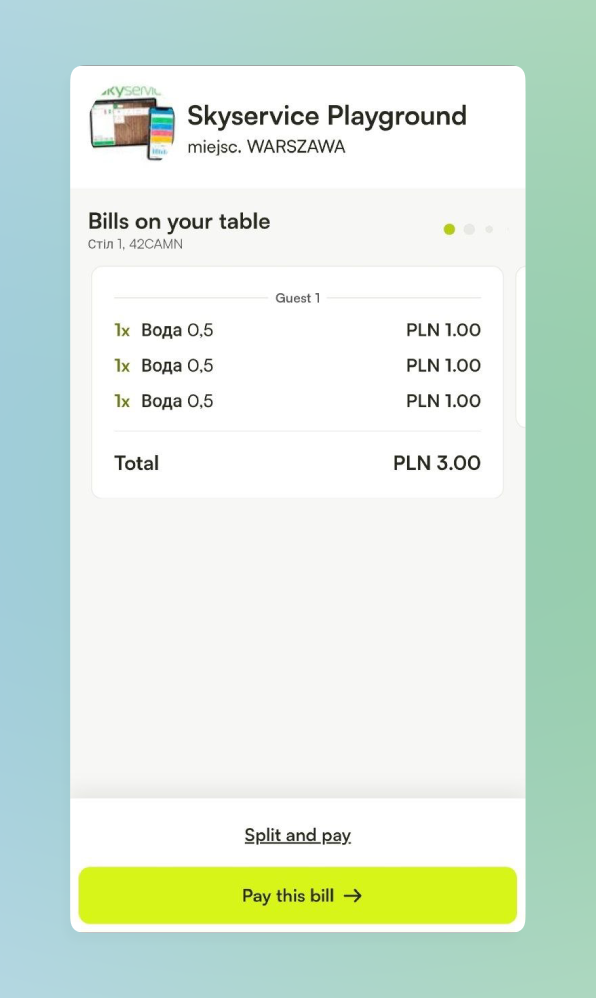
- Next to pay for the order the client scans the QR code of their table and will see the list of items added to the receipt
- If it is necessary to pay not for the entire order but only for individual items from the order, when paying the buyer additionally needs to click Split and pay and then choose the required items
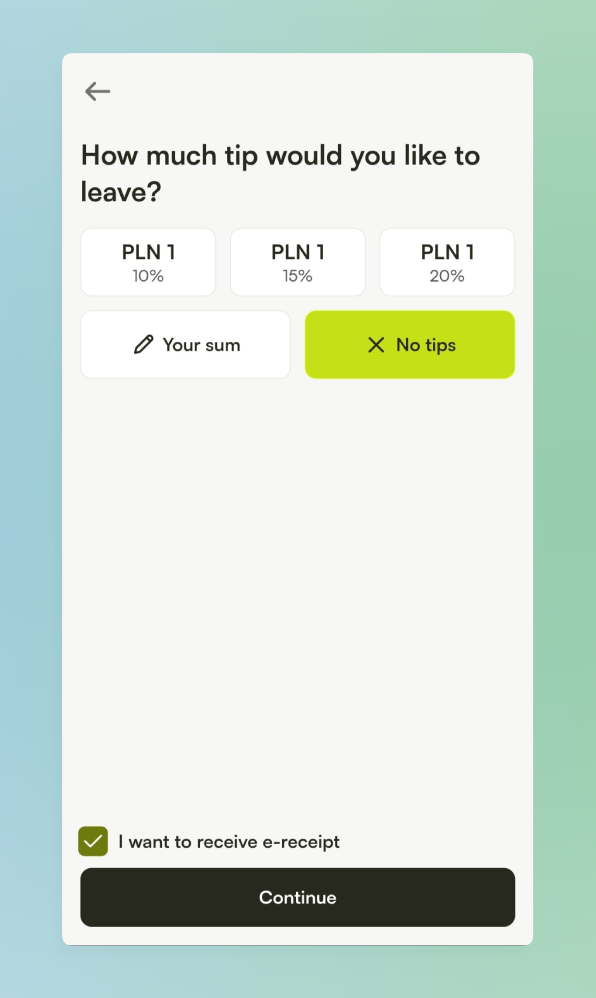
- Next the buyer specifies the amount of tips they wish to give
- If the client wishes to also receive the receipt via email – below they can activate the corresponding option “I want to receive e-receipt” and then there will be an additional field to specify the email to which the corresponding letter will arrive
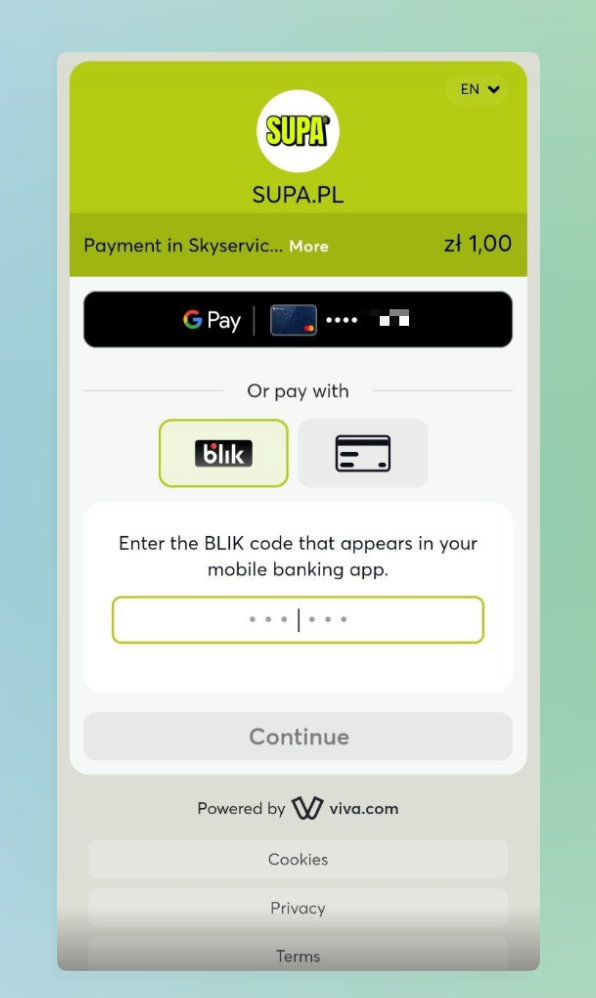
- Next the client will be redirected to the window where they choose a convenient cashless payment method for themselves
- After that the buyer will see a window about successful payment → when clicking View my bill the order with all items is displayed
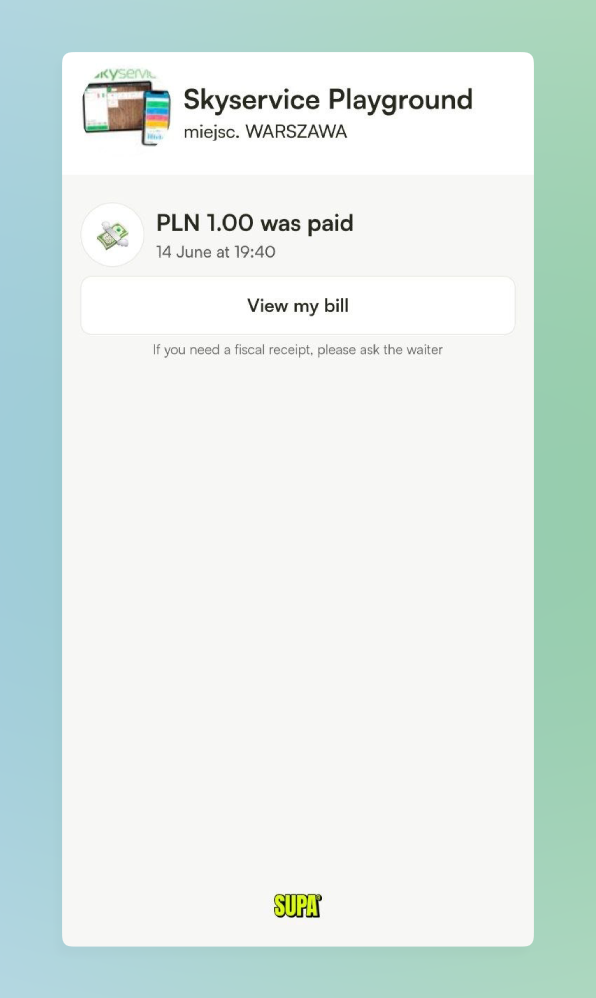
- After full payment of the order – the receipt in Skyservice will close automatically without cashier participation – at the bottom right an additional notification will arrive
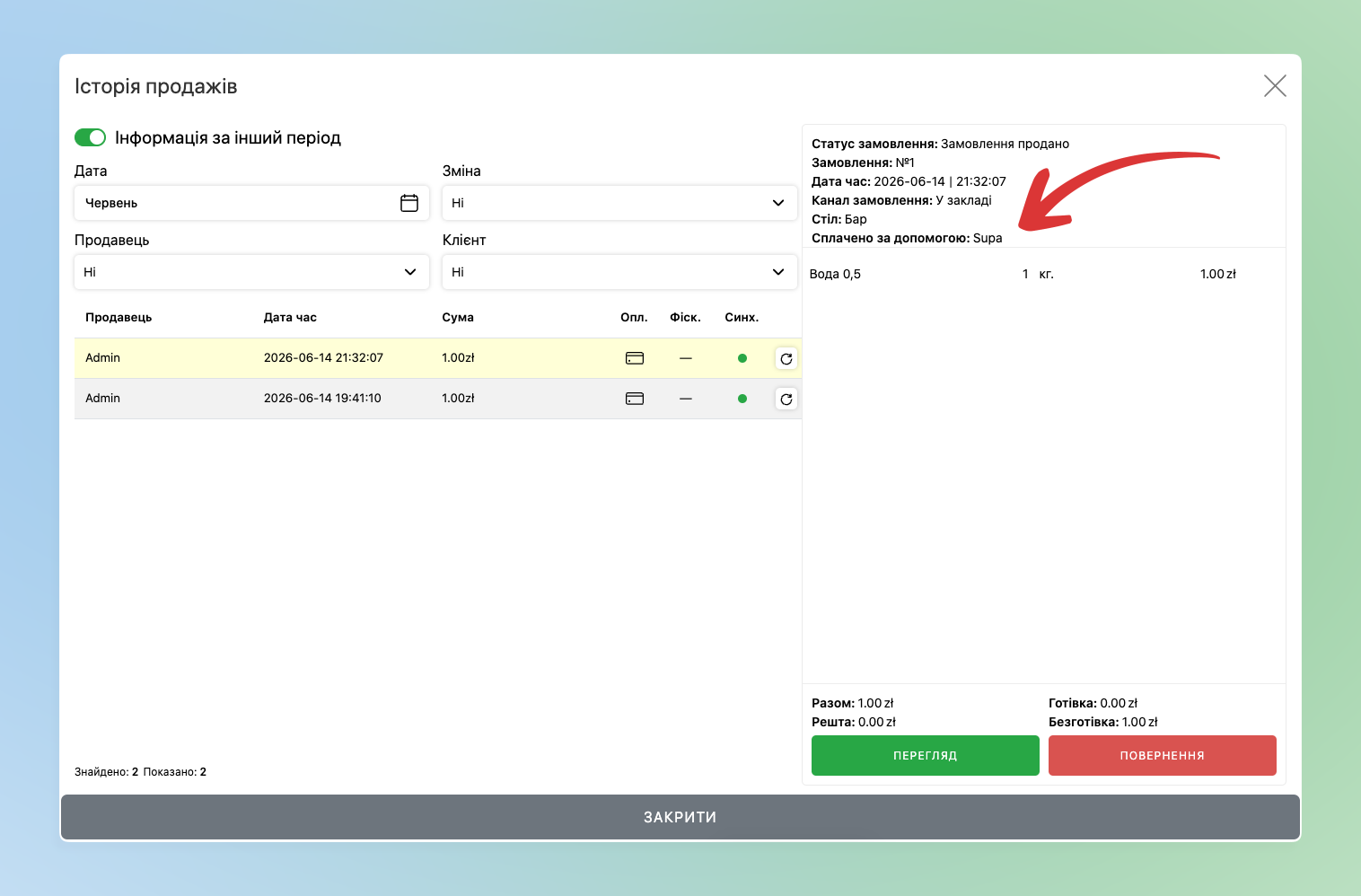
- Next the order is automatically closed with a mark that the payment was via Supa
Frequently asked questions
- Is support for multiple points available? – specifically in Skyservice yes, it is possible to connect many points to the integration.
On the SUPA side – no, each personal cabinet is created with a separate token that can be applied only to one point – that is, if operation of several points is needed – accordingly, accounts need to be registered for each point.
- Does SUPA replace the work of a regular waiter? – No. The system is an assistant, not a replacement for staff. The waiter still greets guests, takes orders and serves dishes. SUPA only fully takes over only the final stage — payment, splitting the receipt and collecting tips, freeing the staff from working with the bank terminal.
- Is it possible to configure the display of items via SUPA? – No. Everything related to items and categories is displayed according to Skyservice settings. Only the data of your online venue is configured manually.