
Salary settings allow automating the calculation of employee salaries based on fixed rates, hours worked, shifts or percentages of sales.
In this lesson we will look at how to configure salary calculation and working time accounting.
Activation of salary calculation and time accounting
- In the Admin panel go to the section Settings → Basic
- In the Admin panel parameters block activate –
- Accrue salary, this will allow accruing salary based on hours worked, shifts or percentages of sales.
- Working time accounting, this will allow recording the start and end of work shifts, keeping records of hours worked for further payroll calculation.
- Click Save
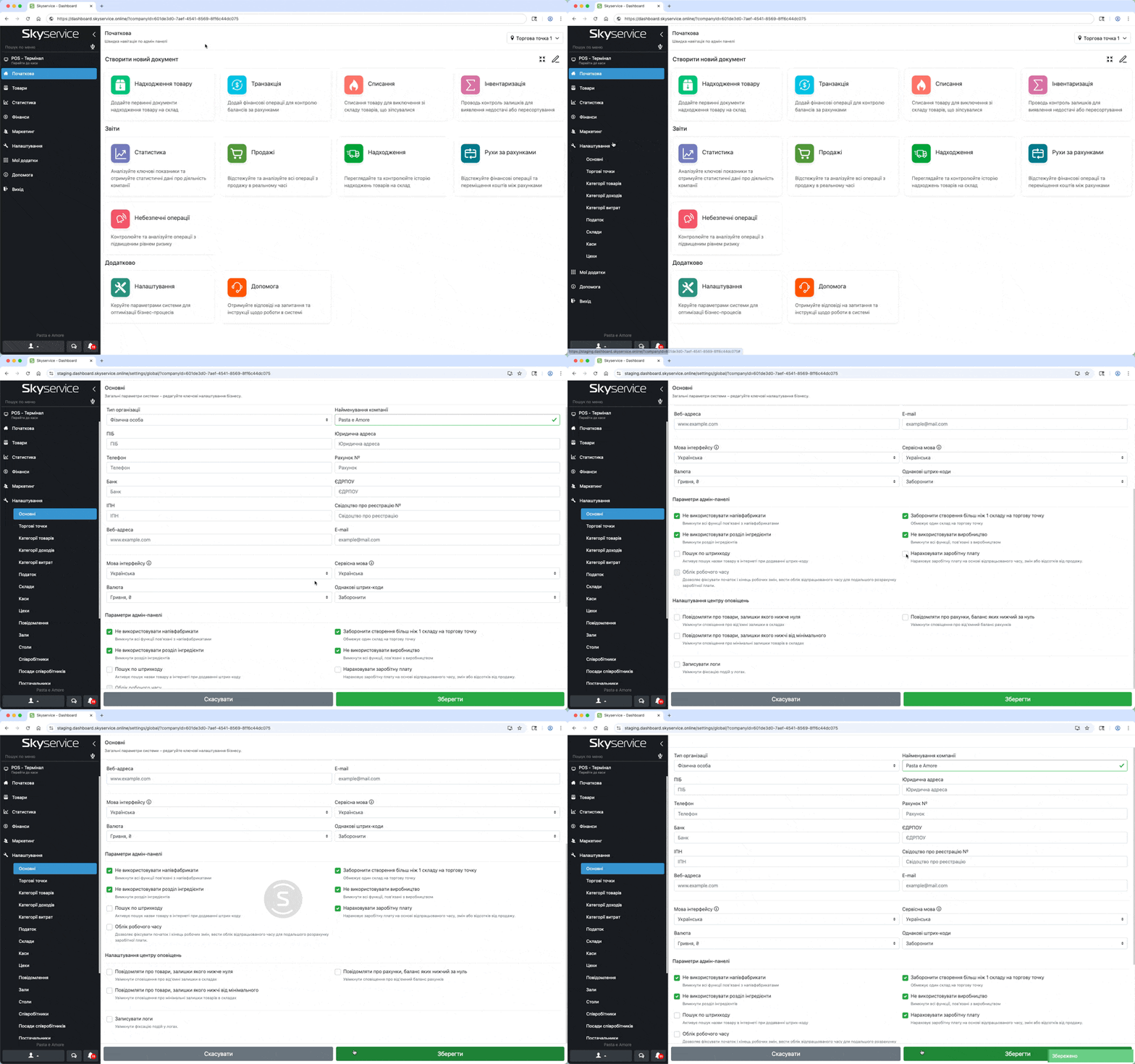
Salary accrual
Various salary calculation models are available in the system: hourly, fixed, per shift, percentage or mixed.
Salary setup for a position
- In the Admin panel go to the section Settings → Positions
- Select the required position or create a new one
- In the window scroll to the Salary
- Select the type of salary accrual:
- Fixed rate – monthly payment regardless of hours worked.
- Hourly rate – salary calculation based on actual hours of work.
- Per-shift pay – fixed amount for each shift worked.
- Percentage of sales – payment of a certain percentage of revenue.
- Mixed system – combination of various types of salary accrual.
- Click Add or Save.
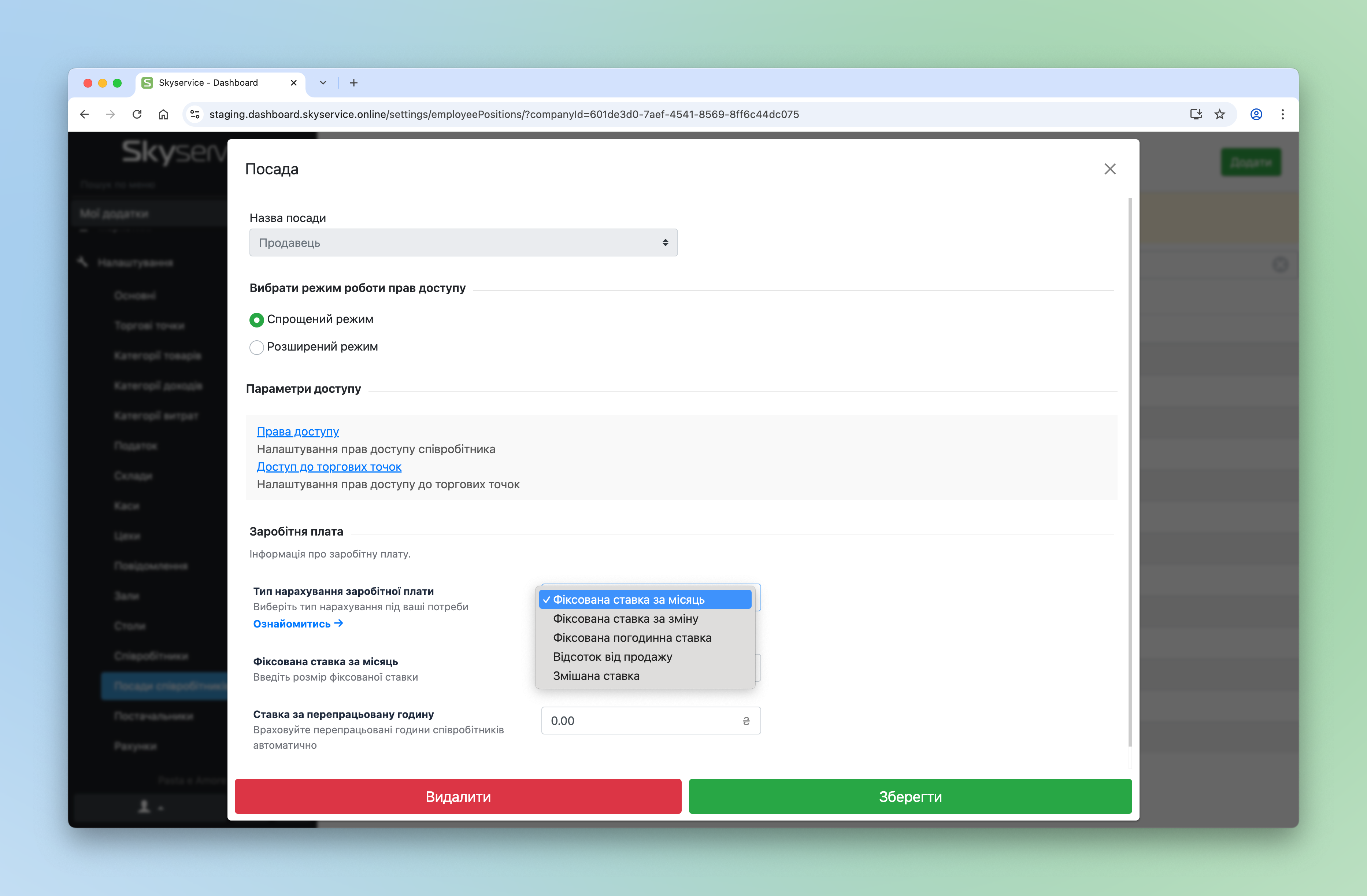
How each type of salary accrual works
☝️ Salary editing affects the current and future period. Previous salary accrual data does not change.
❗️ If you edited the salary by monthly, hourly rate and per-shift rate when it was already open, then the changes will begin from the next period.
Fixed rate
Monthly payment regardless of hours worked. For example, if an employee’s salary is 20,000 UAH, they will receive this amount monthly regardless of how many hours or shifts they worked.
Hourly rate
Hourly rate
– salary calculation based on actual hours of work. For example, if the rate is 100 UAH/hour, and the employee worked 160 hours per month, their salary will be 16,000 UAH.
Time range
– flexible rate setting depending on time of day. For example, in the morning time (08:00-12:00) the rate is 50 UAH/hour, and in the evening period (18:00-22:00) – 120 UAH/hour. If the employee works from 10:00 to 20:00, the salary will be calculated according to these rates.
Per-shift pay
Fixed amount for each shift worked. If the per-shift rate is 1,500 UAH, and the employee worked 20 shifts a month, their salary will be 30,000 UAH.
Percentage of sales
Payment of a certain percentage of revenue.
Percentage of own sales
– accrual comes from sales made by the employee personally during the shift.For example
, a waiter earns:15% from all categories
- 10% from the category
- Main menu2% from the subcategory
- Italian pizza🧾
How accrual from a receipt worksSuppose that during a shift waiter Oleh created a receipt with the following items:
Ginger lemonade at the price of 220 UAH, from the category
- Drinks → LemonadesFettuccine Bolognese at the price of 260 UAH and Fettuccine Carbonara at the price of 280 UAH, from the category
- Main menu → Pasta and RisottoAnother waiter Ihor added the following items to this receipt and settled the guests:
Diablo at the price of 300 UAH, from the category
- Main menu → Italian pizzaWith pear at the price of 320 UAH, from the category
- Main menu → Italian pizzaNeapolitan at the price of 270 UAH, from the category
- Main menu → Italian pizza👤
Who gets the percentage?💡 The reward is accrued to
Ihor, since he closed the receipt — regardless of who created it or added items.👉 Waiter Oleh will not earn from this receipt, since Ihor closed it.
💰 Ihor earned 104.80 UAH from the order.
For
- Ginger lemonade the waiter receives 15% — that’s 33 UAHFor
- Fettuccine Bolognese and Carbonara — 10% each, that is 26 UAH and 28 UAHFor
- Diablo pizza, pear pizza and Neapolitan — 2% each, that is 6 UAH, 6,40 UAH and 5,40 UAHPercentage of sales per shift
– accrual takes place from all sales during the shift, from other employees who work in that shift.For example
, a waiter earns:0% from all categories
- 7% from the category
- Lemonade🧾
How accrual takes place10:00 – waiter Oleh opened a work shift
- 10:00 – 13:00 – Oleh sold:
- Ginger lemonade —
- 7 pcs × 110 UAH = 770 UAHDiablo pizza —
- 1 pcs × 300 UAH = 300 UAH14:00 – waiter Ihor opened a work shift
- 14:00 – 16:00 – Ihor sold:
- Ginger lemonade —
- 2 pcs × 150 UAH = 300 UAHFettuccine Carbonara —
- 1 pcs × 280 UAH = 280 UAH17:00 – waiter Oleh closed the work shift
- 17:00 – 20:00 – Ihor sold:
- Ginger lemonade —
- 2 pcs × 110 UAH = 220 UAHMargherita pizza —
- 1 pcs × 270 UAH = 270 UAH21:00 – waiter Ihor closed the work shift.
- 💰
Salary calculationOleh:
Lemonade:
- (110 UAH × 7 + 150 UAH × 2) × 7% = 74,90 UAHDiablo pizza — not in the “Lemonade” category, % = 0
- Total: 74,90 UAH
- Ihor:
Lemonade:
- (150 UAH × 2 + 110 UAH × 2) × 7% = 36,40 UAHCarbonara — not in the “Lemonade” category, % = 0
- Margherita pizza — also not included, % = 0
- Total: 36,40 UAH
- Mixed system
Combination of various types of salary accrual.
How to record work shifts
Go to the cash register and log in as an employee
- Click
- Menu → Additional optionsIn the window in the section
- ShiftsClick
- Open shift or Close shiftSelect the employee under whom you need to open the shift
- Enter the PIN code
- Confirm
- opening or closing of the shift.☝️ Skyservice will account for the hours worked by the employee or the shift worked.
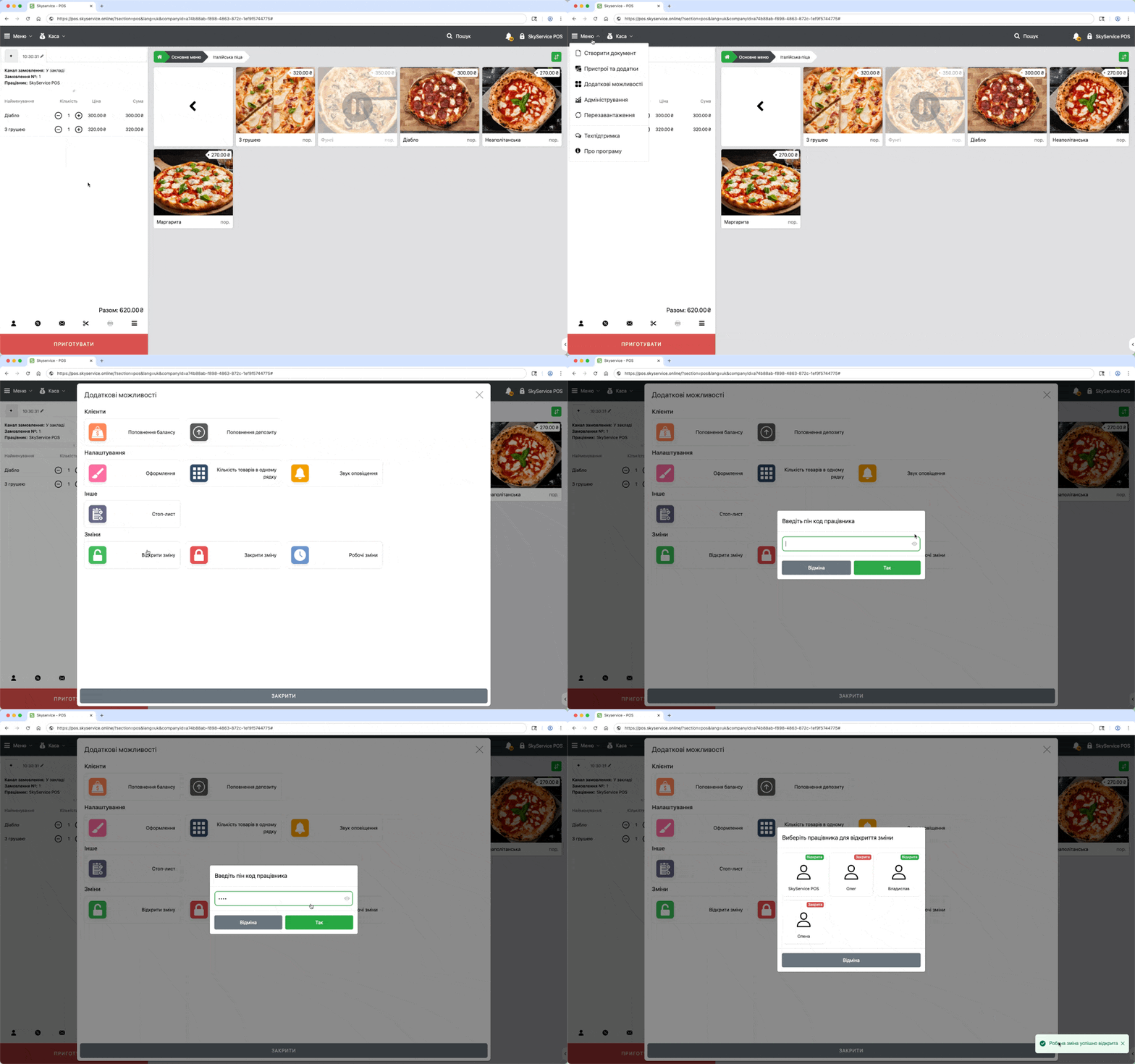
👉 If an employee who does not have access to the cash register arrived earlier than the administrator, they can open the shift later. Then the administrator can edit the shift start time or shift closing time.
Viewing salary accrual
View salary accrual for each employee and keep records of hours worked or shifts.
How to view accrual
In the
- Admin panel go to the section Finance → Reports → SalaryIf necessary, select the viewing period and use the position filter.
- 👉
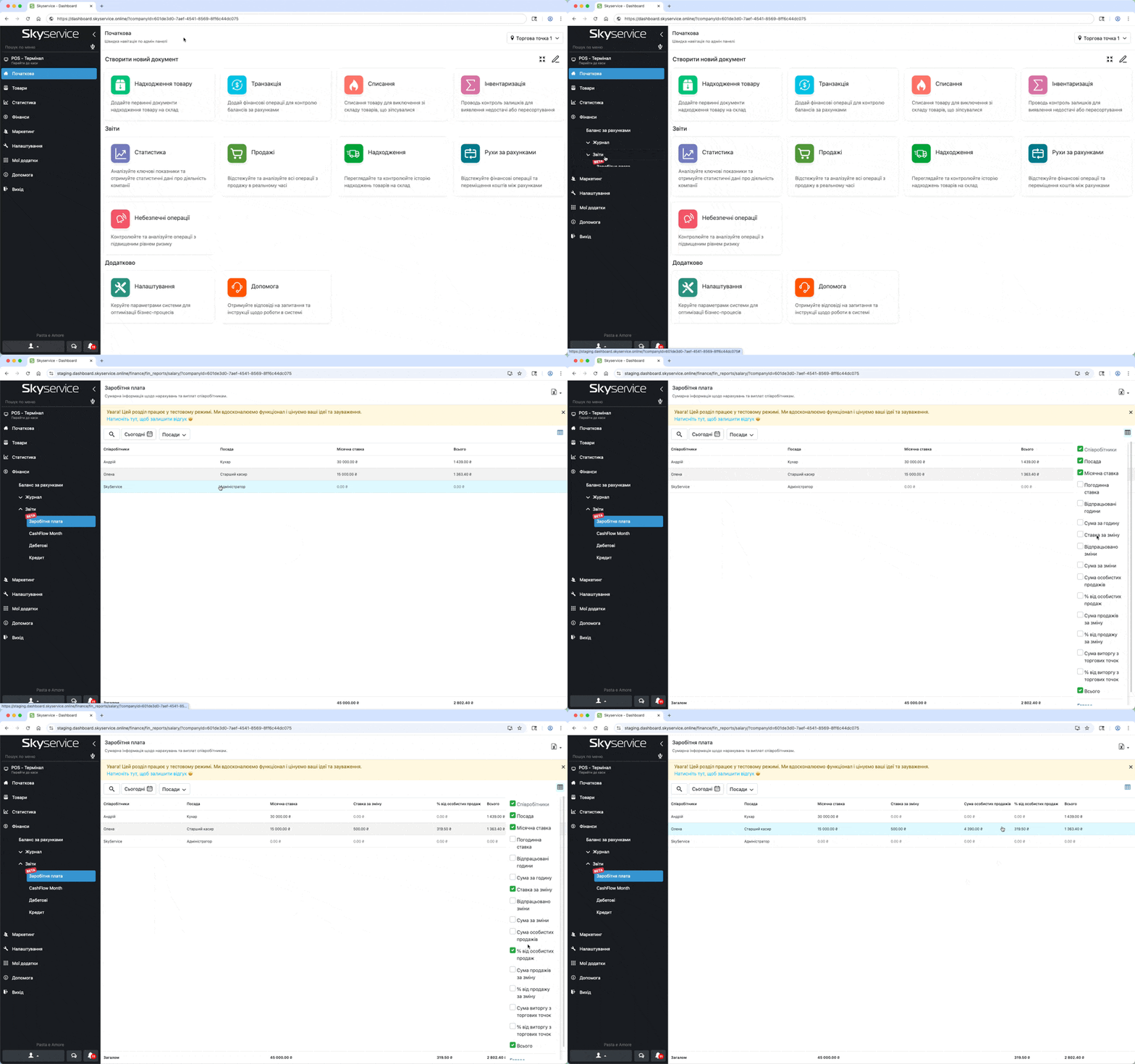
How accrual takes place in the tableMonthly
rate is calculated according to the number of days worked by the employee, for example: ставка рахується відповідно до кількості відпрацьованих днів працівником, наприклад:
Місячна ставка / кількість днів в місяці × кількість днів = 15 000.00 / 30 (кількість днів в місяці червень) × 2 = 1 000.00 грн