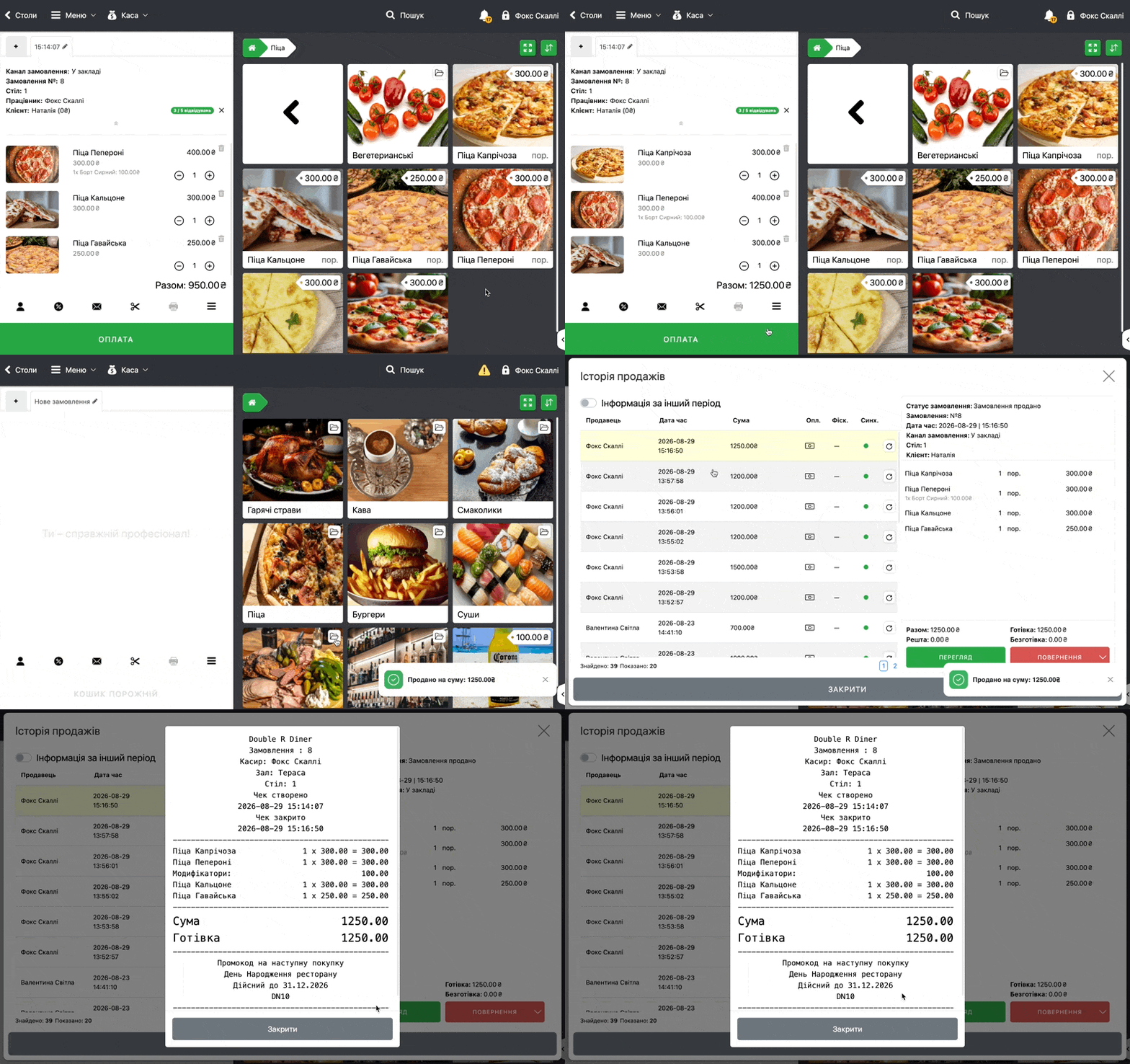
Promo code — a special set of characters that the buyer communicates to receive certain marketing offers.
Activation
To go to the Promo codes module and its subsequent configuration
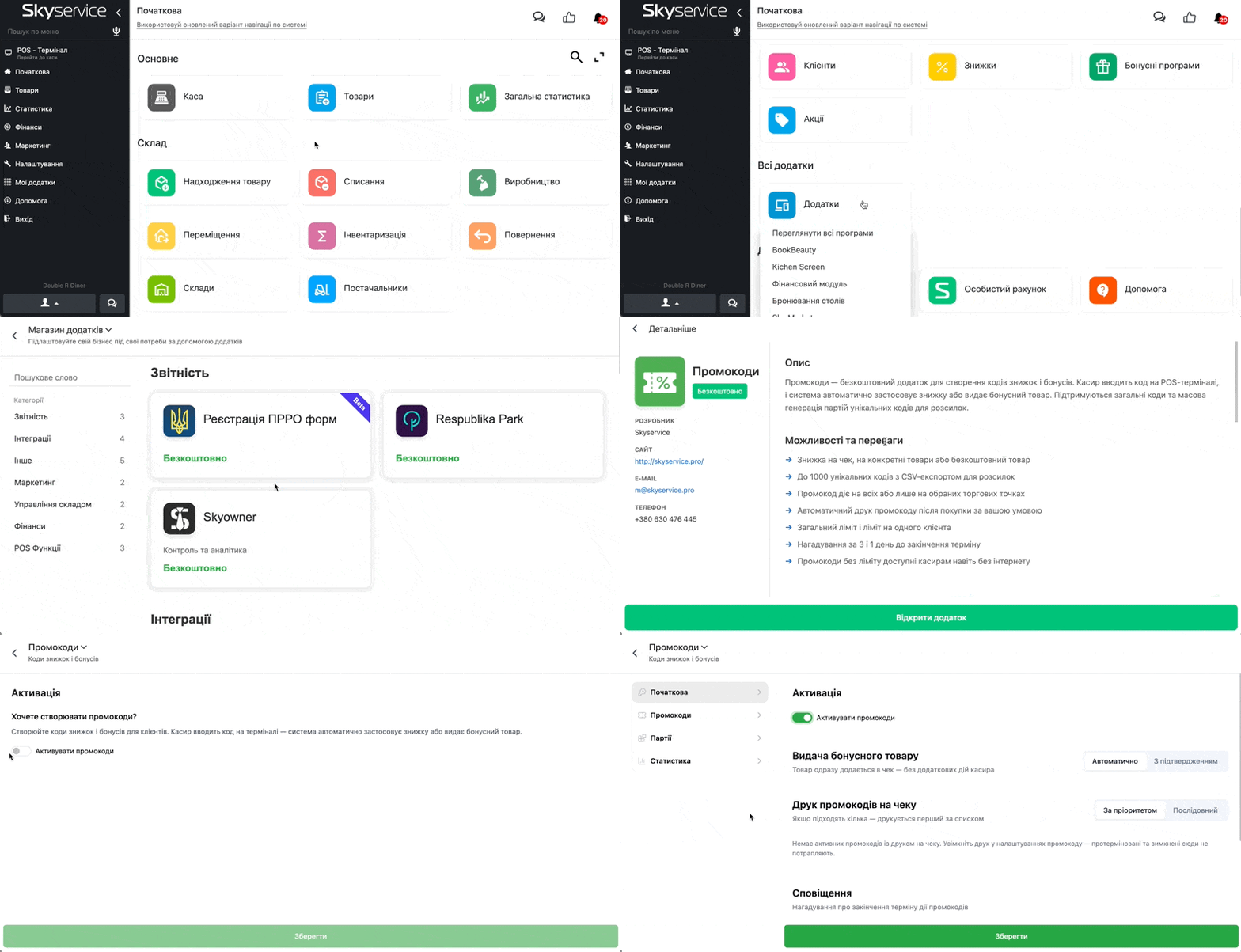
- On Home click Apps → View all programs
- Select Promo codes, additionally read the description of the app and click Open app
- Click Activate Promo codes
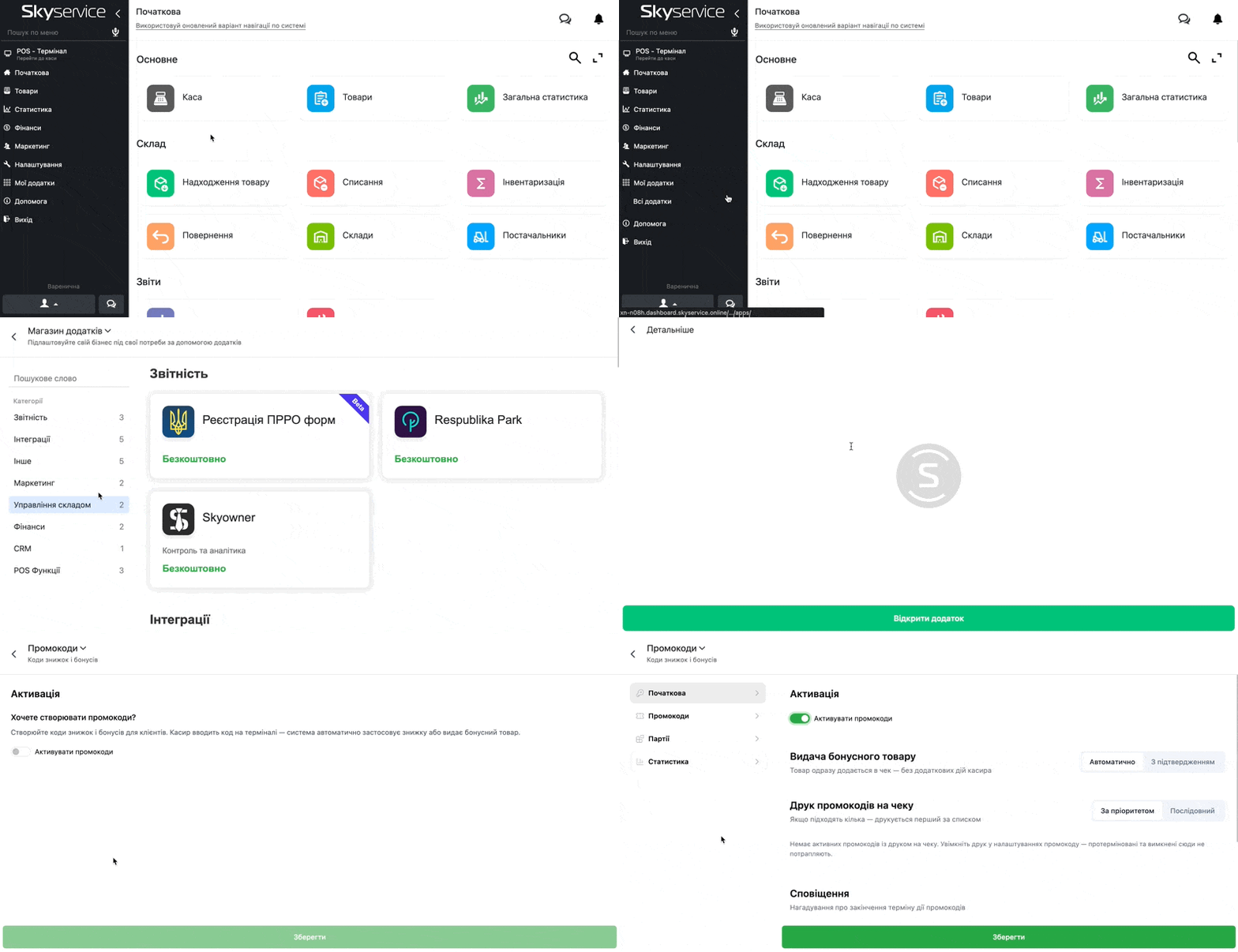
- Or in the side panel click My apps → All apps
- Select Promo codes and click Open app
- Click Activate promo codes
Setup
Initial
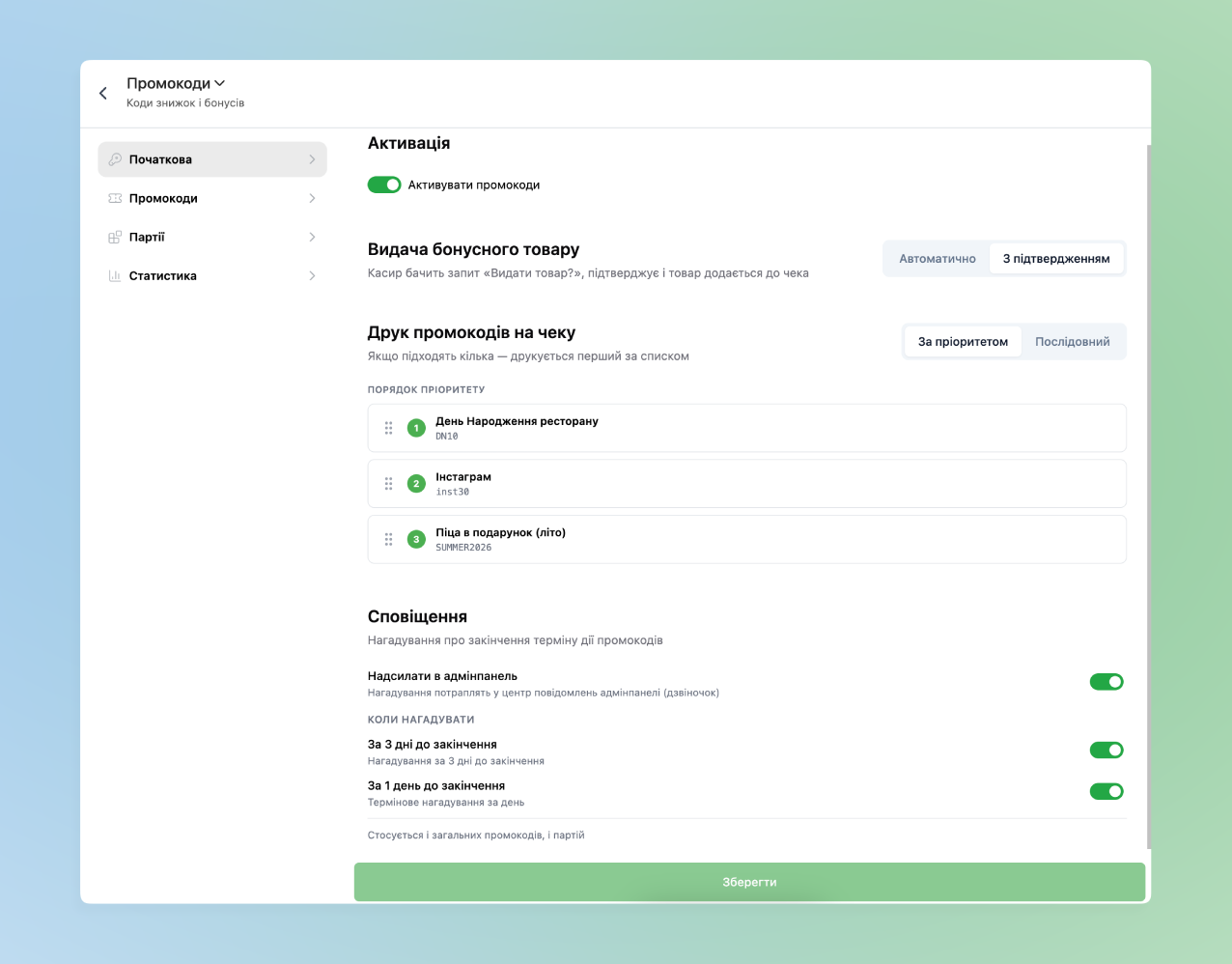
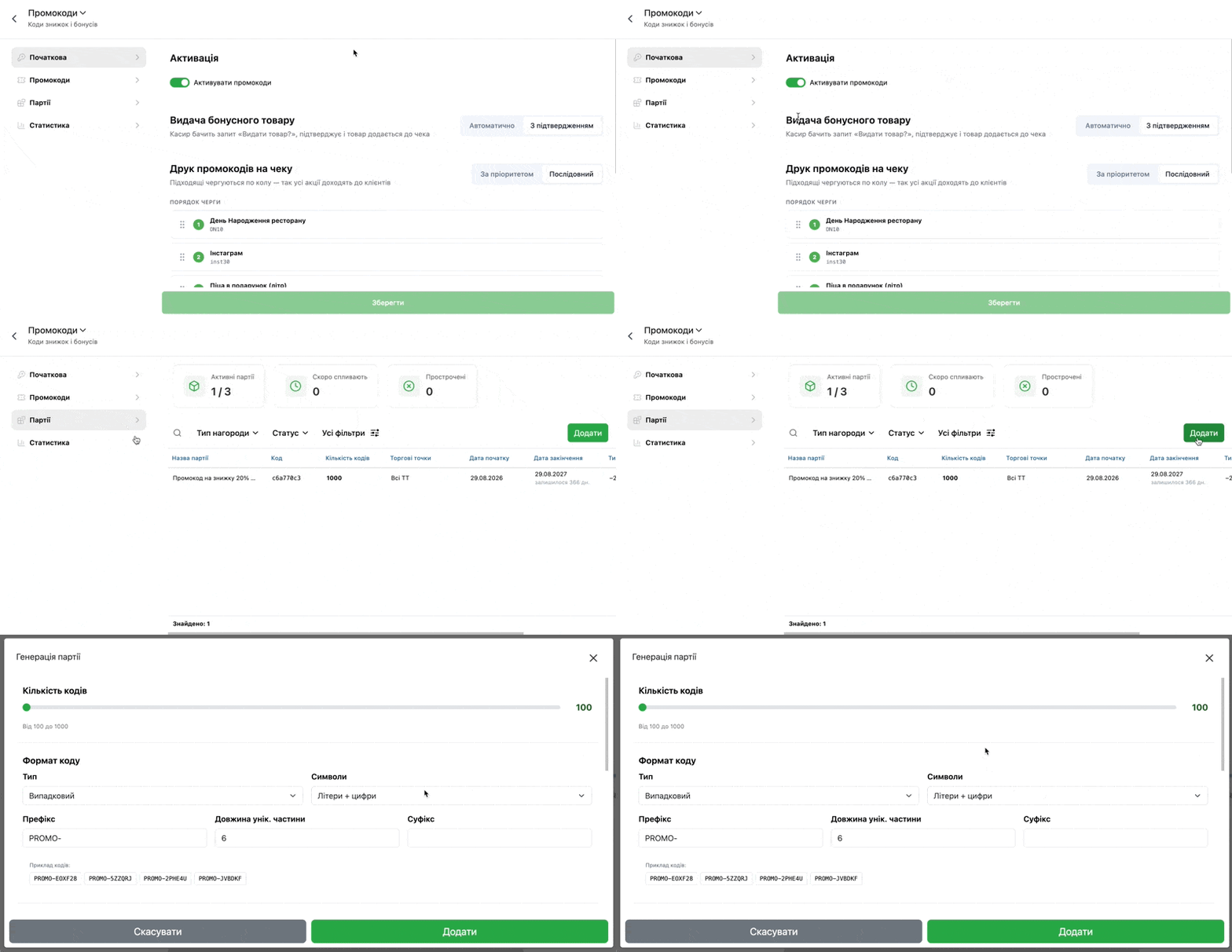
- Bonus item issuance – whether Automatically add bonus offers to the check or With Confirmation of the cashier
- Printing promo codes on the check – if several active General promo codes are on the check, only one code can be printed even if the conditions for printing all are met. Next you set in what
- By priority – if the conditions for printing suit several promo codes – only the one that is first in the list is printed, the other two the client will not receive
- Sequential – active promo codes are printed in turn on each subsequent check in a circle
- Additionally by clicking to the left of the Promo code on the button “six dots” they can be sorted for the order of printing on the check
- Notifications – additional reminders about the expiration of promo codes:
- Send to admin panel – whether it is necessary to see these notifications in the Admin panel
- Remind 3 days and 1 day before expiration of the validity period
☝🏻Next you can configure two types of Promo codes – General, i.e., one promo code for all buyers, and Batch – i.e., a certain number of promo codes with a unique number.
General Promo codes
General – one for all promo code. You publish/announce it wherever you want and any client can use it.
Creating a promo code
- To add a General code go to the section Promo codes → click Add and then create the required one.
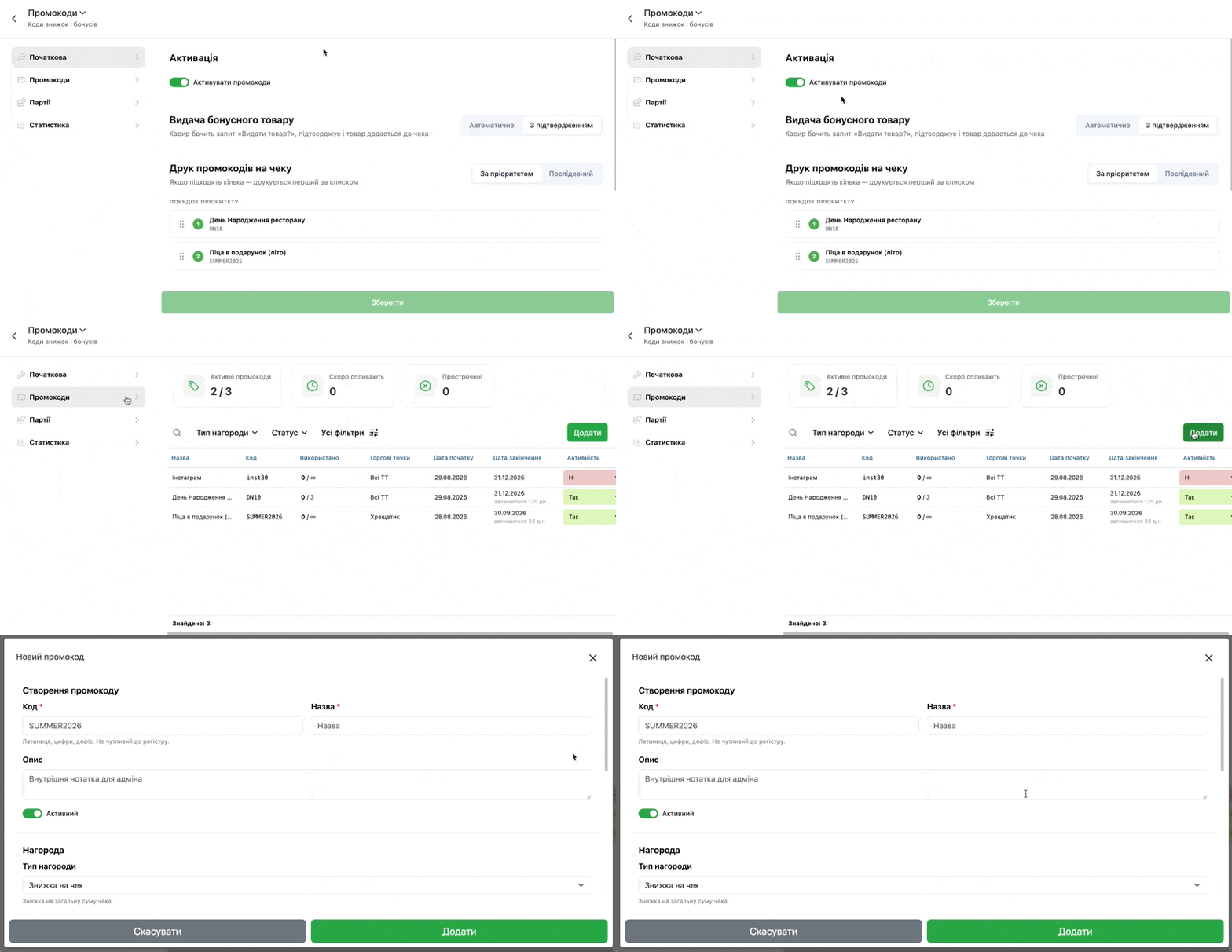
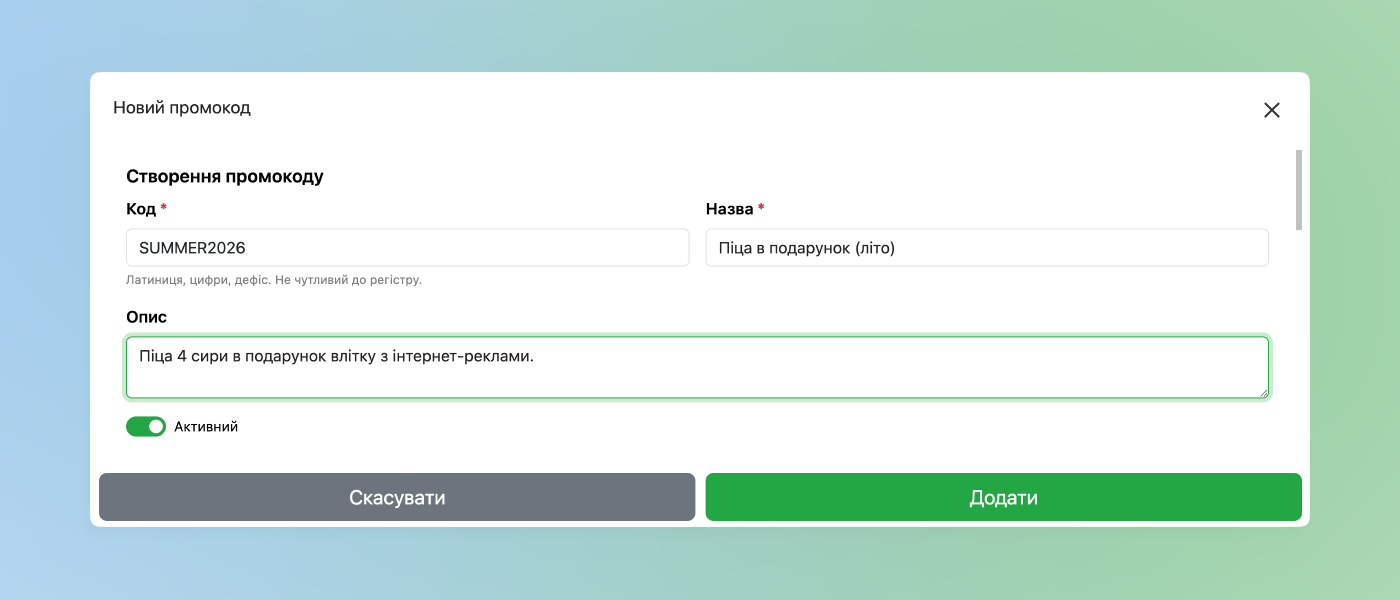
- And fill in the settings card of the Promo code:
- Code – the direct code that the buyer will provide
- Name – satisfactory
- Description – if desired you can add a description to the promo code
- Switch whether the Promo code should be Active after creation
Reward
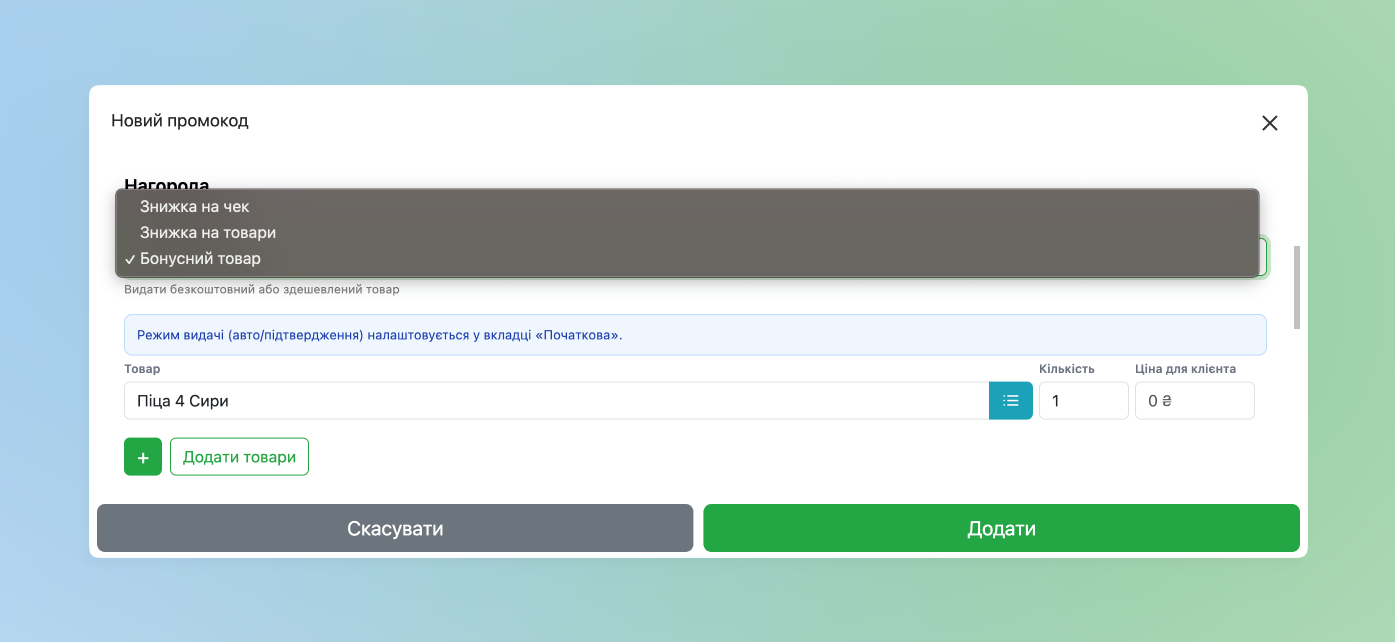
Next the Reward is configured:
- In total three types of reward can be configured:
- Discount on check – when applying the code, a discount will be applied as a percentage or a certain amount of funds specifically on the check
- Discount on goods – the discount will be applied specifically to the selected goods
- Bonus item – when specifying a promo code the buyer will receive a certain item at a promotional price
Limits
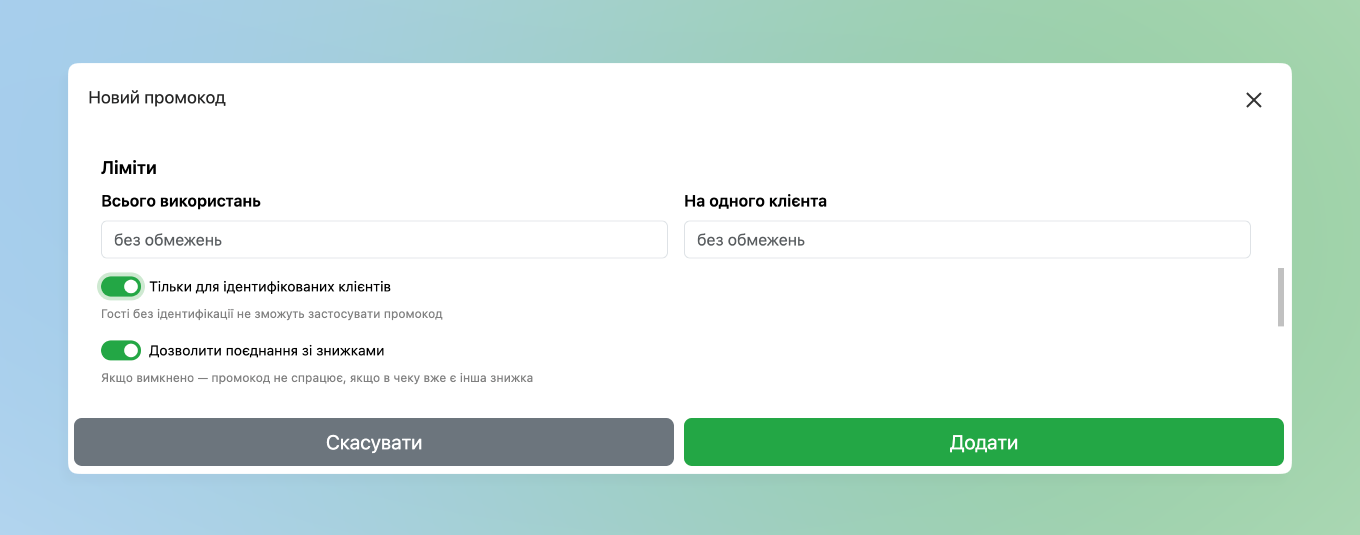
- In Limits are configured:
- Total uses – how many times in total the Promo code can be used. For example if you set 10 – after the tenth application the Promo code becomes unavailable for any buyer. By default set without restrictions
- Per one client – how many times the promo code can be applied to each client added to your base. By default set without restrictions
- Only for identified clients – with the active switch the promo code will only work when adding a client from your own base
- ☝🏻This switch will necessarily be active if the Limit → Per one client was set to a certain number
- Allow combining with discounts – whether it is possible for the Promo code to work with other available Discounts on one check
When and where it works
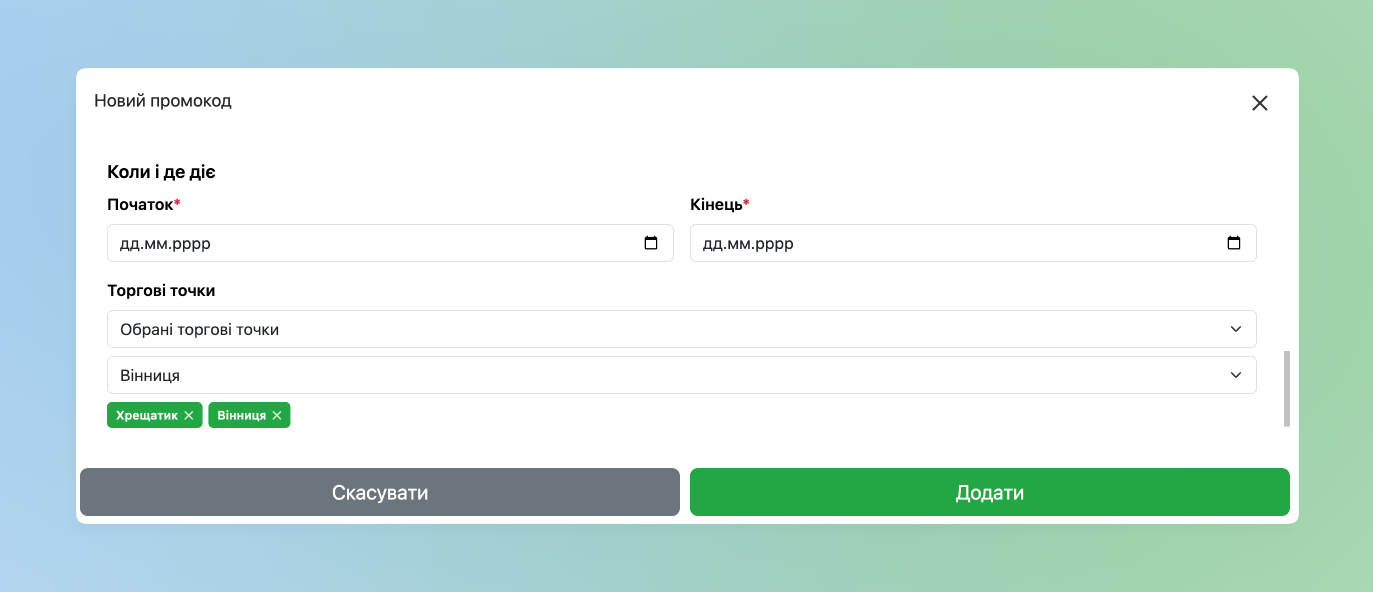
- In the section When and where it works the period of operation of the created Promo codes is configured and at which specific points the promo code will work:
- You can set All sales points, Selected and All except selected, i.e., at which specific points the promotion will not work
☝🏻At the end of the period if the promo code is not used – it becomes Expired and will not be available for use.
Printing on the check
Next the settings are configured in case it is necessary to print the General promo code on the check.
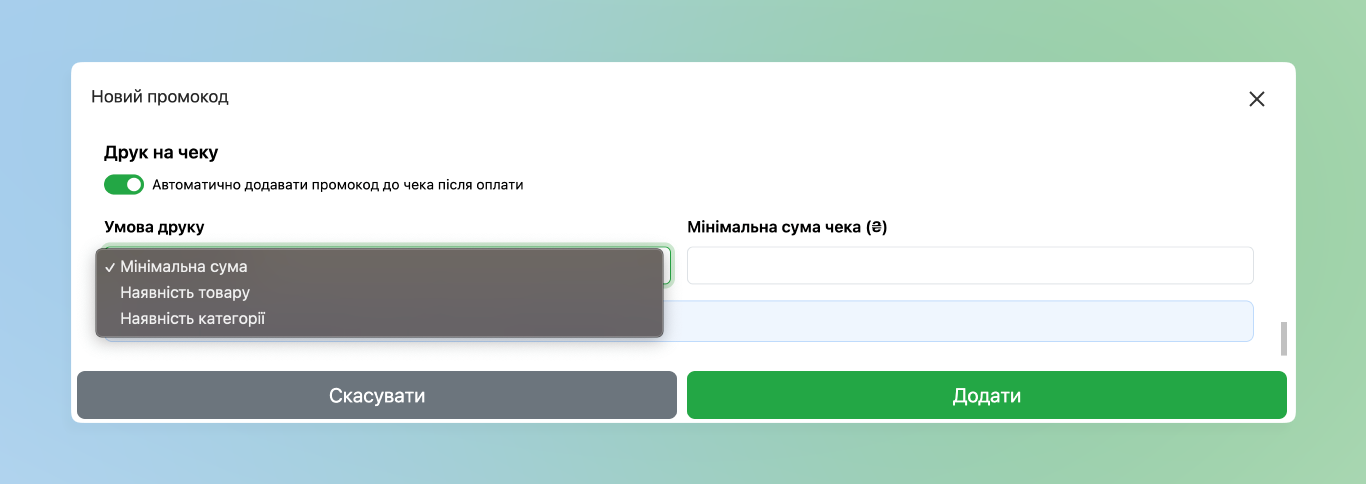
- Print on check – whether to automatically add the promo code to the check after payment
- In Printing conditions three options to choose from are configured:
- Minimum amount – what amount the check must be for this promo code to be printed on it
- Availability of item – which specific items must be in the check for the promo code to be printed
- Availability of category – from which specific Category items must be added for the promo code to be automatically printed
☝🏻Queue order of promo codes printing is configured in the Initial settings.
Batches of unique Promo codes
Adding a Batch of promo codes gives the ability to create hundreds of unique codes for each client.
☝🏻Note that each Unique promo code will be one-time use.
- To add hundreds of unique promo codes go to the section Batches → click Add and add the settings
Number of codes and their Format
At the beginning you can configure:
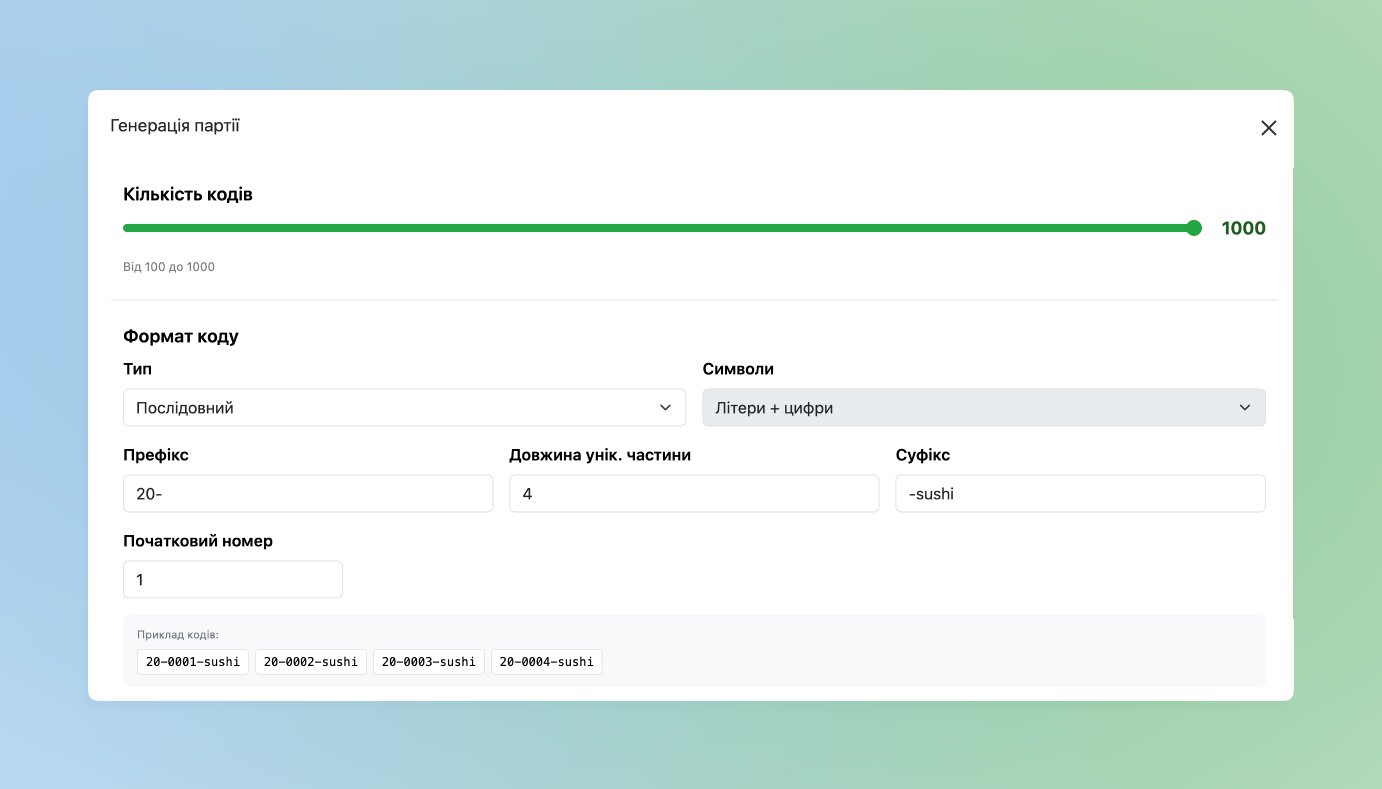
- Number of codes – how many promo codes can be created within the batch – from 100 to 5000. To change the number drag the slider
- Code format:
- Type – what specifically the Promo code should be:
- Random – a random set of characters
- Sequential – sequential numbering will go starting from the number that is configured a bit lower in the field Starting number
- Characters – which specifically characters can be in the Promo code: Letters + numbers or with Random code type you can also set Only numbers or Only letters
- Prefix – a satisfactory set of characters at the beginning of the promo code, which depends on the settings of the field Characters
- Length of the unique part – length of the generated part of the Promo code
- Suffix – a satisfactory set of characters after the Unique part at the end of the Promo code, which depends on the settings of the field Characters
- A bit lower you will see Examples of codes according to the previously set settings
- Type – what specifically the Promo code should be:
Reward
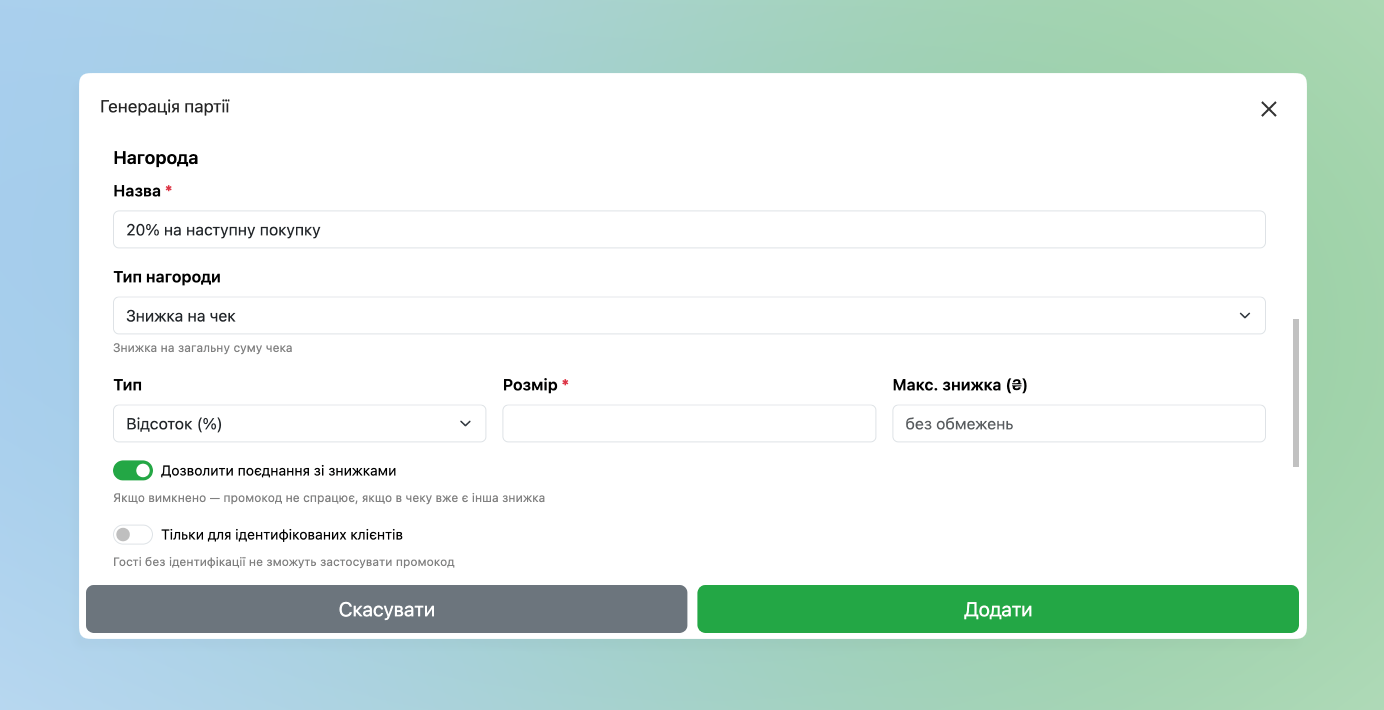
Next the Reward settings are added in a similar way as in General promo codes:
- Reward name satisfactory
- And next it is possible to configure three types of reward:
- Discount on check – when applying the code, a discount will be applied as a percentage or a certain amount of funds specifically on the check
- Discount on goods – the discount will be applied specifically to the selected goods
- Bonus item – when specifying a promo code the buyer will receive a certain item at a promotional price
When and where it works
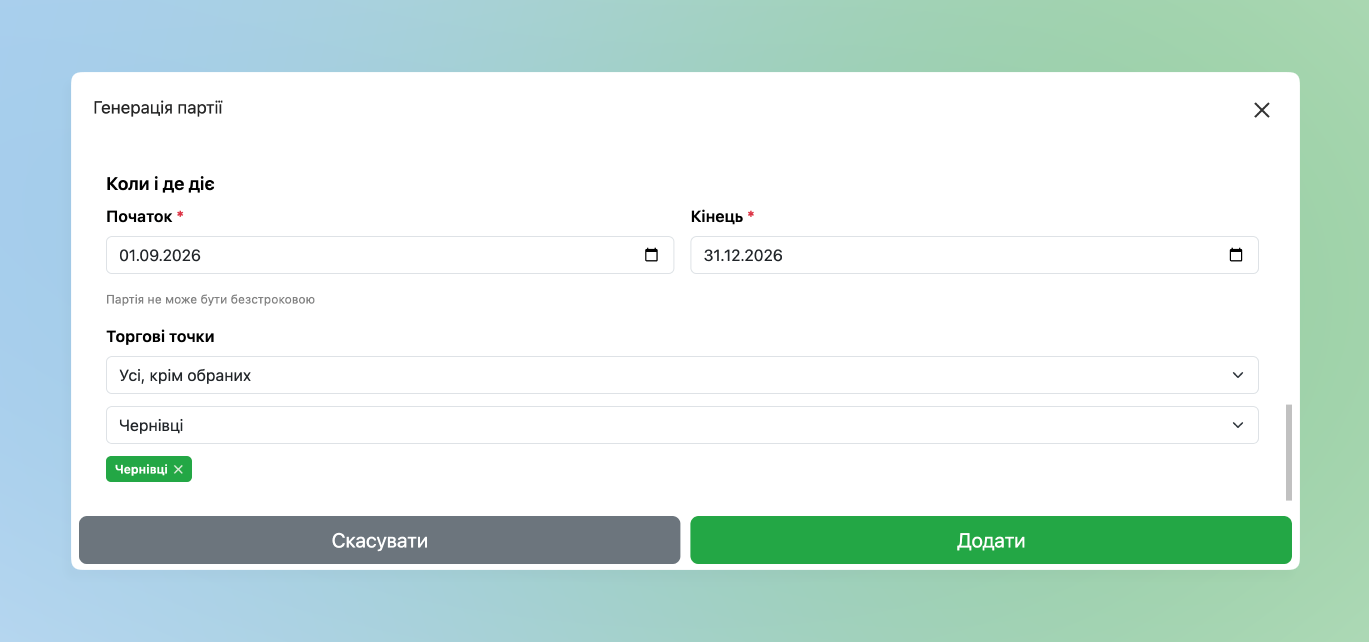
Period and place of operation of the Batch of promo codes are also added in a similar way as in General promo codes:
- In the section When and where it works the period of operation of the created Promo codes and at which specific points they will work:
- You can set All sales points, Selected and All except selected, i.e., at which specific points the promotion will not work
☝🏻At the end of the period the Batch becomes Expired and unused promo codes will not be available for use.
Generation of Batch of promo codes
- After creating a Batch of promo codes, to view the list of codes click the required one in the corresponding section
- Additionally you can Export the list to a table of format .CSV for uploading client lists to sites, online stores or CRM systems
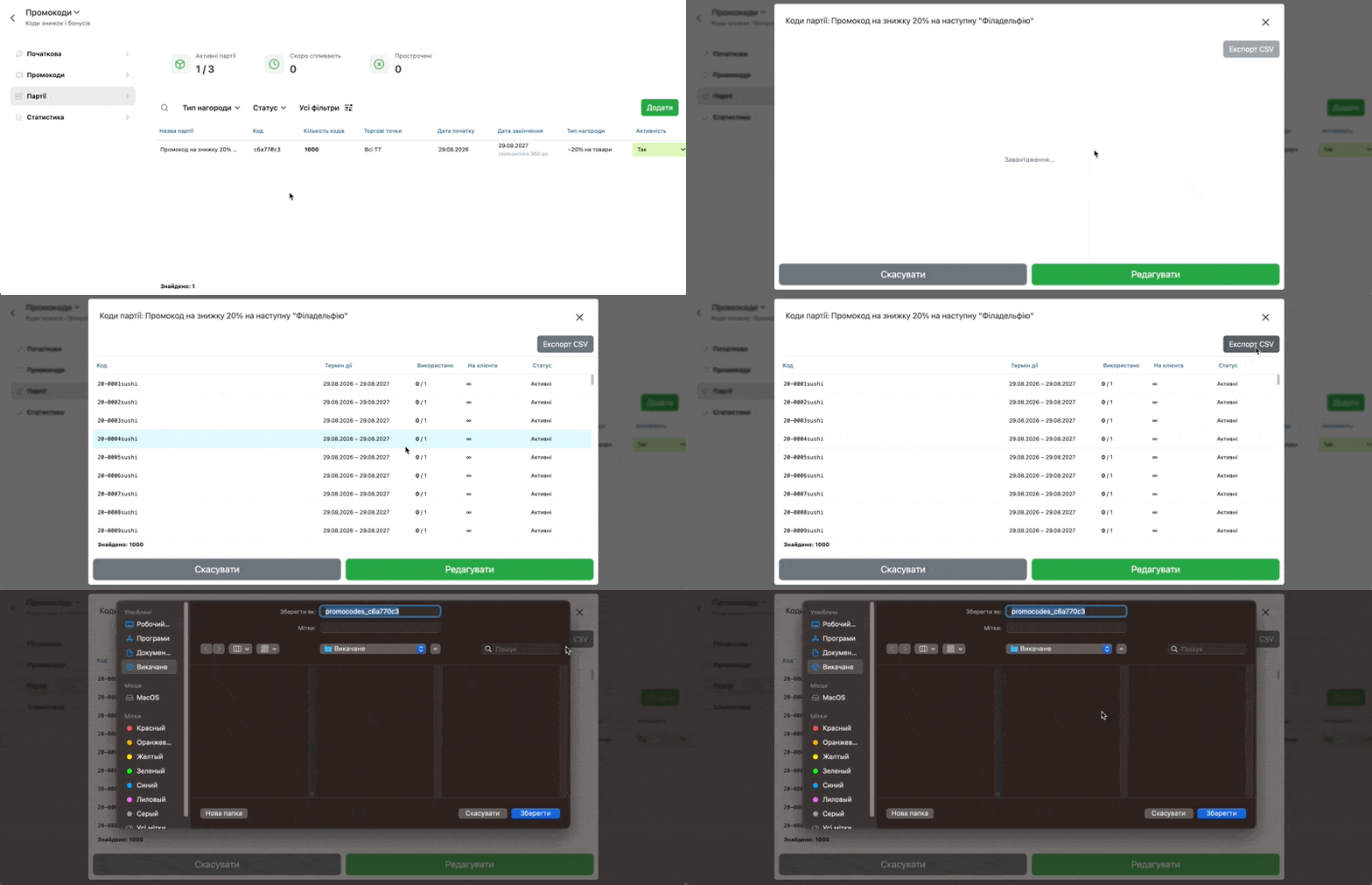
☝🏻We note that Batch promo codes are not printed on checks and they are passed separately to buyers, for example by sending SMS messages, for which the file downloaded via Export is convenient in the format .CSV.
Viewing lists and filtering
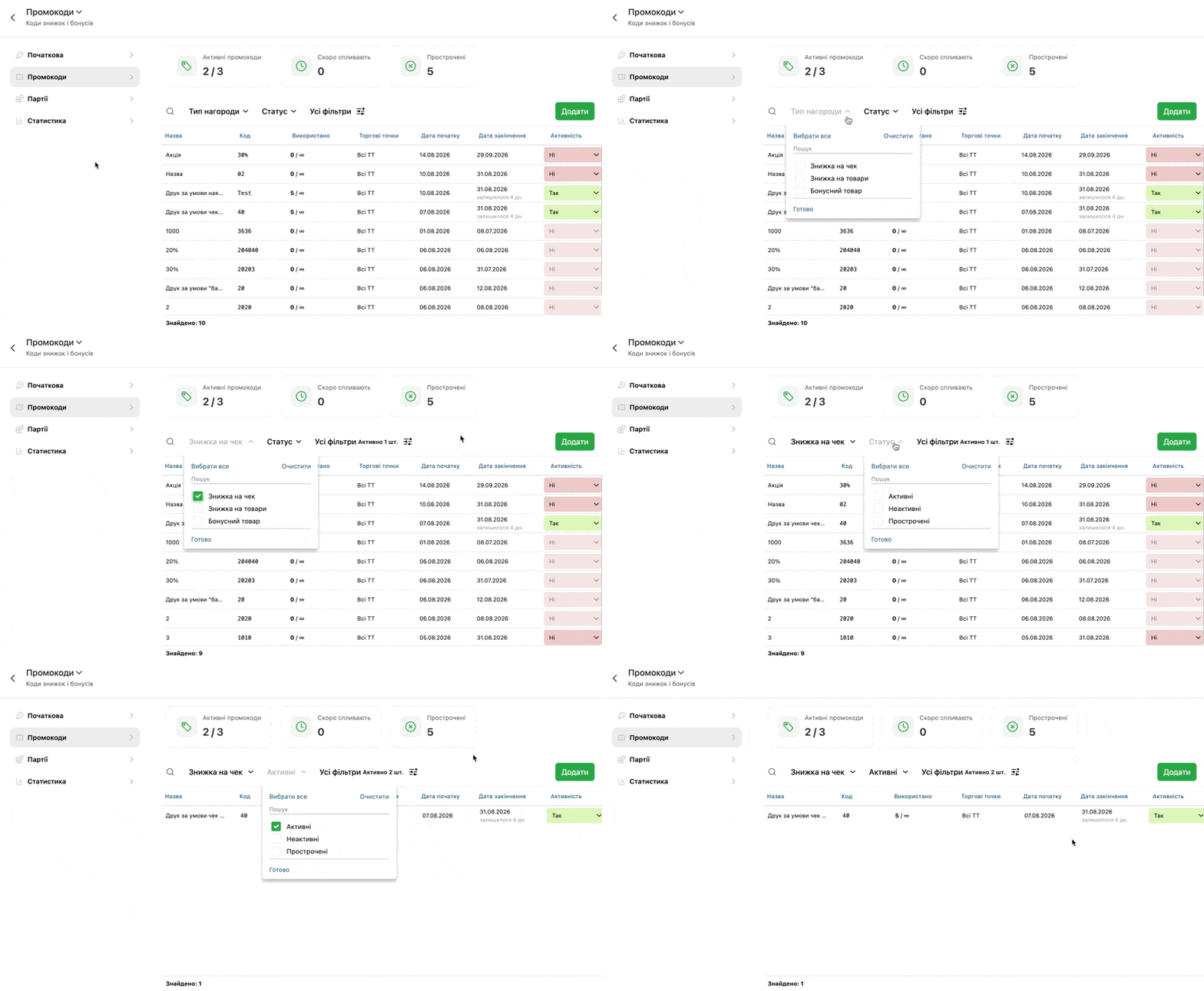
Lists of General and Unique promo codes are viewed and filtered in the same way:
- At the top are displayed:
- Active promo codes – number of currently active promo codes
- How many Soon expiring promo codes
- Number of Expired by period promo codes
- A bit lower you can filter the list of promo codes by Reward type and their Status
Why maximum 3 active promo codes?
The promo code is used as a targeted mechanism for a certain marketing hypothesis or task, and not as a permanent tool. That is why there is a soft restriction on the number of active promo codes/batches at the same time. Let’s look at why exactly this number.
- With three active General promo codes it was found that this is the maximum sufficient for comfortable work. With a larger number in practice it was noticed that the effect of one code overlaps another, statistics become blurred, it is more difficult to control the settings of each and understand which one is really working.
- The same with Batches of unique promo codes – when working with more than three mailings it is quite difficult to track which worked better and how much money went to which channel. Therefore it is convenient to focus on 1-3 active campaigns to be able to draw clear conclusions.
☝🏻Three active promo codes — this is an extreme threshold, not a plan of action to which everyone should aim.
- In fact the cleanest result gives the principle “one period — one promo code” (or one mailing). With this approach you transparently see: which discount attracted a client, how many transactions passed with it, how much you “gave up” as a discount and what net revenue you got.
- When several promo codes are simultaneously – it is more difficult to understand which one really was effective and actually brought clients, and which one just “passed by” and gave a discount to those who would have bought anyway.
- A simple and working algorithm: launch — evaluation of results — conclusions — next launch. Only in this way marketing remains manageable and profitable.
☝🏻We note that it is possible to create countless promo codes or their batches, but only three General promo codes and three Batches can be active. For creating more than three Promo codes/Batches only two can be active.
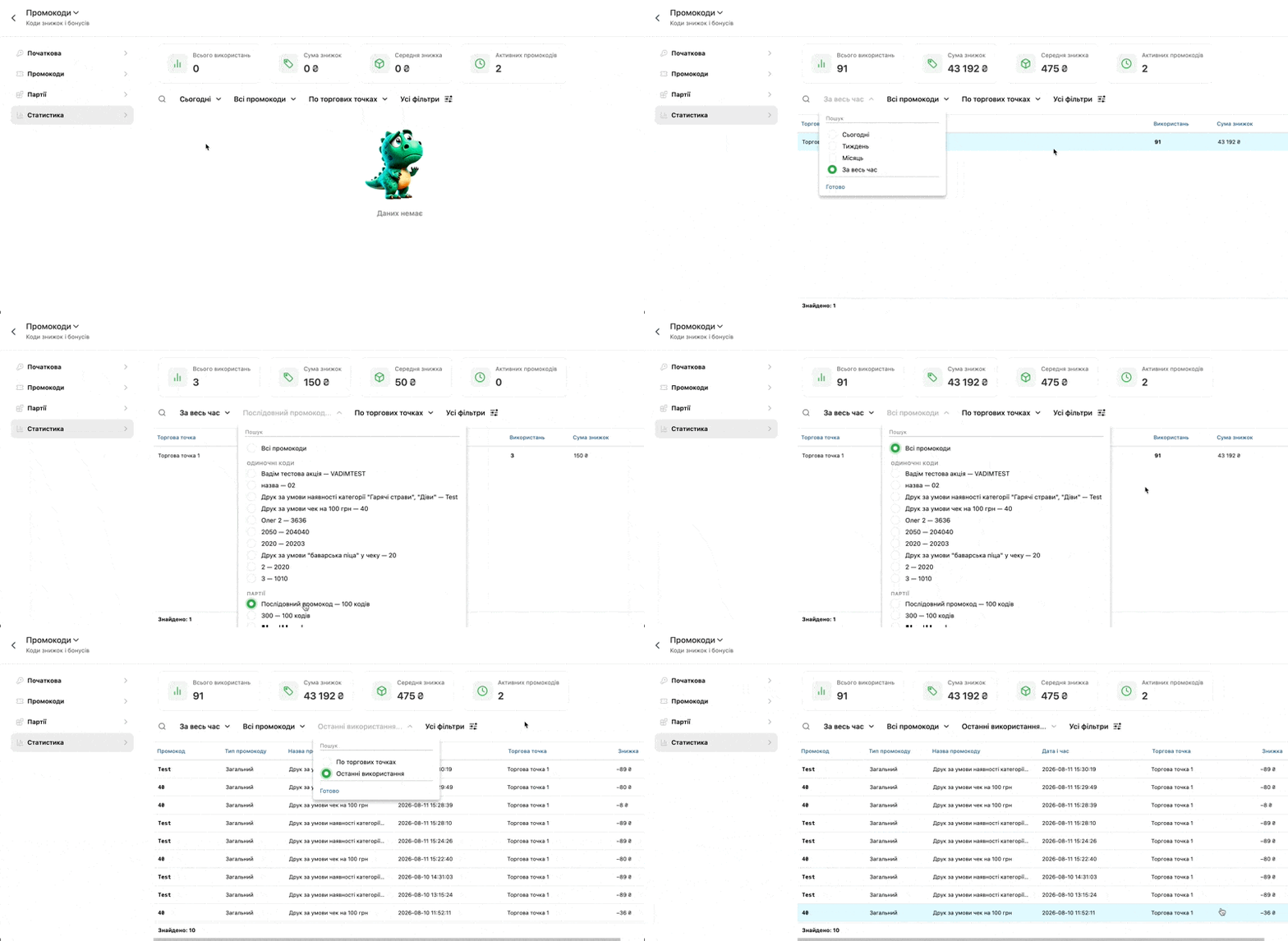
Statistics
- At the top are displayed:
- How many total uses of promo codes were
- Total Amount of discounts that buyers received thanks to promo codes
- Average discount
- Number of Active promo codes
- The indicators above can also change according to Filtering by:
- Period of application
- Which specifically Promo codes need to be viewed
- Additionally by:
- By sales points – i.e., total amount of Uses of promo codes and Amount of discounts
- Last uses – below the last used promo codes are revealed as a list by sales. By clicking on a sale it is revealed.
POS terminal
Application
The promo code is always applied together with a purchase. If there is not a single item in the check – the promo code cannot be used
General promo code
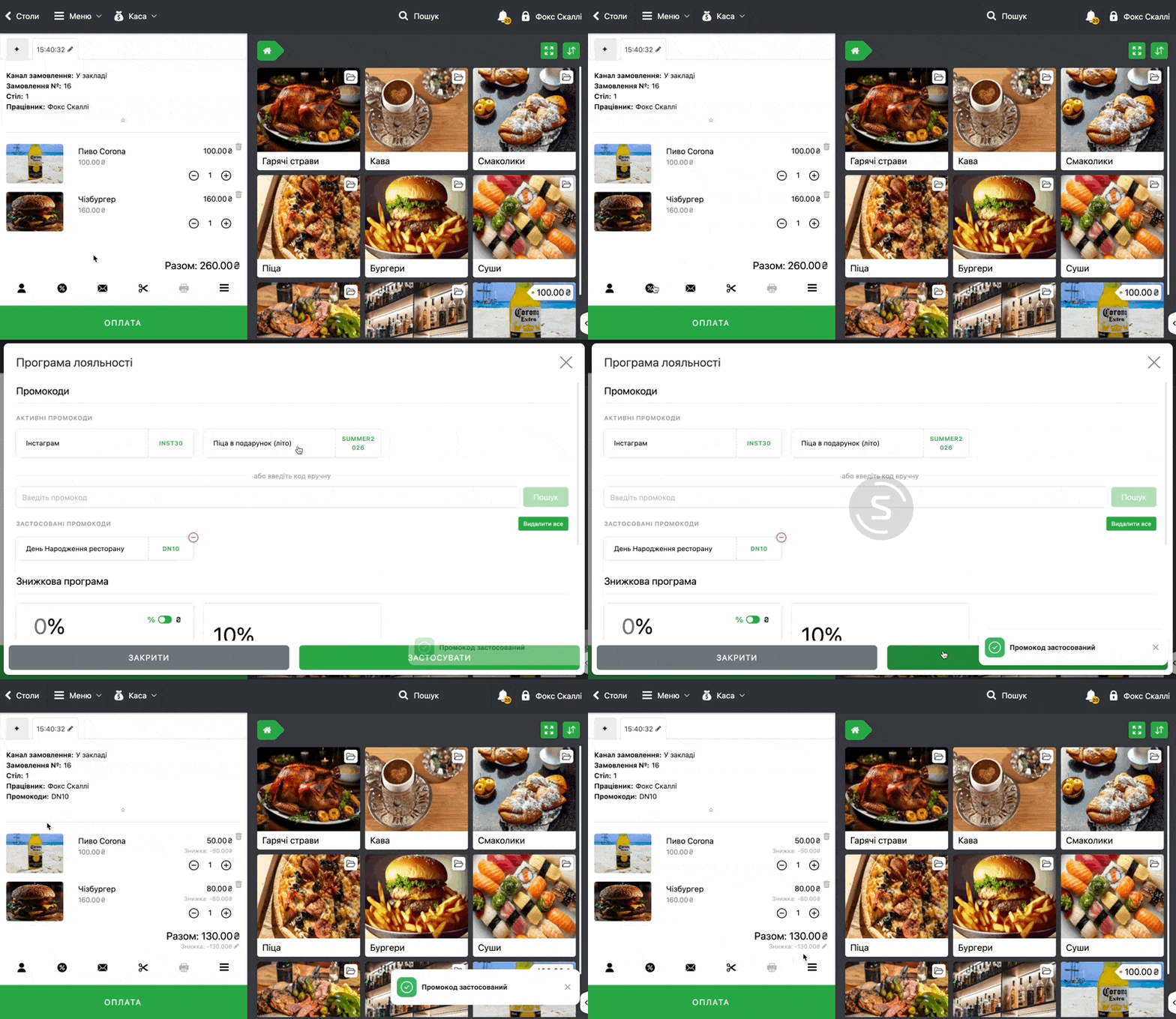
- To apply a General promo code first add items to the cart as usual
- Next to go to marketing options click at the bottom the button “%”
- Select the required Promo code (in the list the name and code of active ones are indicated)
Unique promo code from Batch
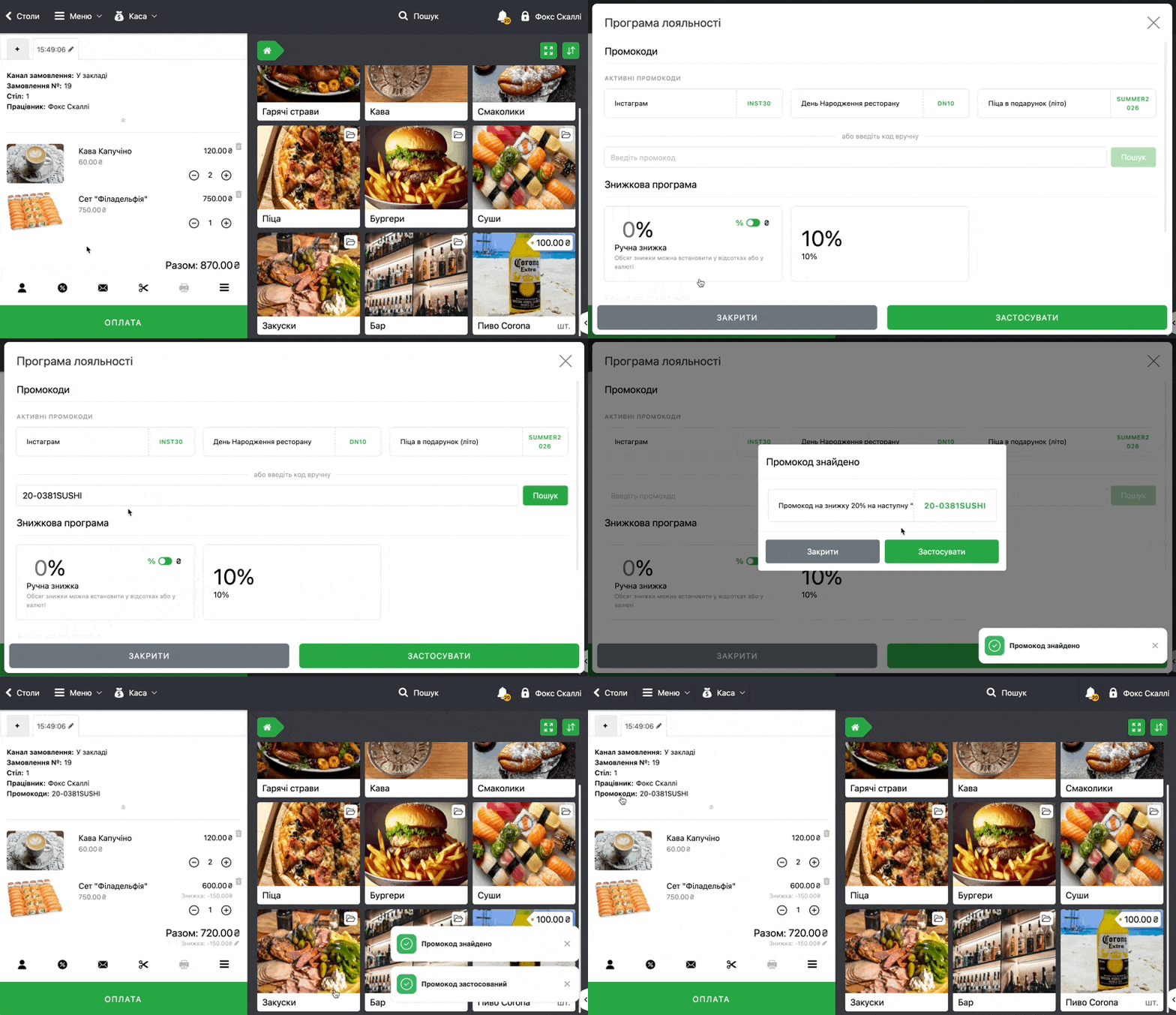
- To apply a unique promo code from Batch also first add items to the cart and click at the bottom the button “%”
- In the field for entering the promo code manually enter the code that the buyer dictates or shows
☝🏻Note that on the POS terminal in the list only General promo codes are displayed. Batch codes the cashier enters manually, having previously asked the client to name or show their personal code.
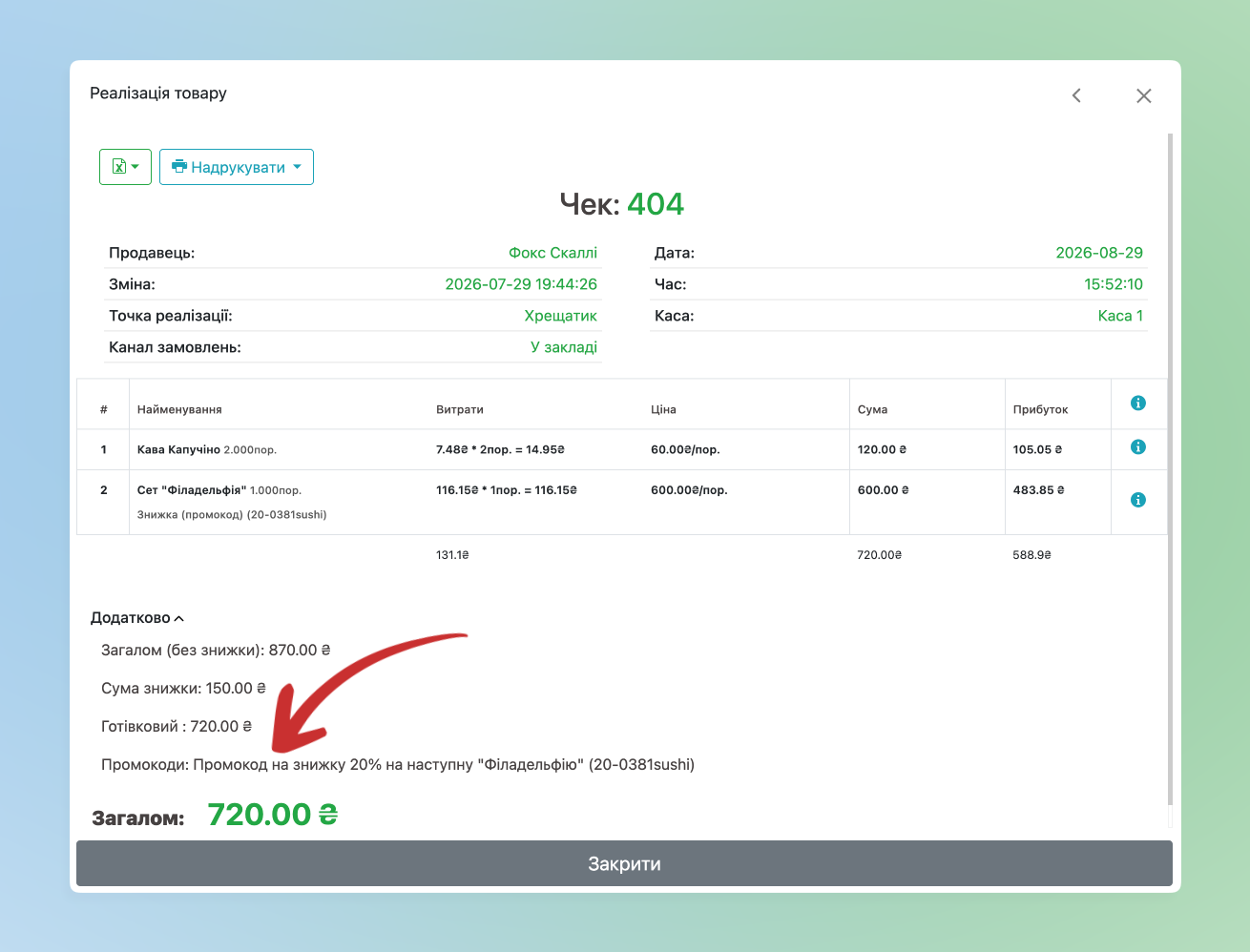
- And next sales with General and Batch promo codes will have the same appearance in the Admin panel and in the POS terminal
- When applying a Batch code to the check additionally the unique promo code that the buyer provided will be displayed
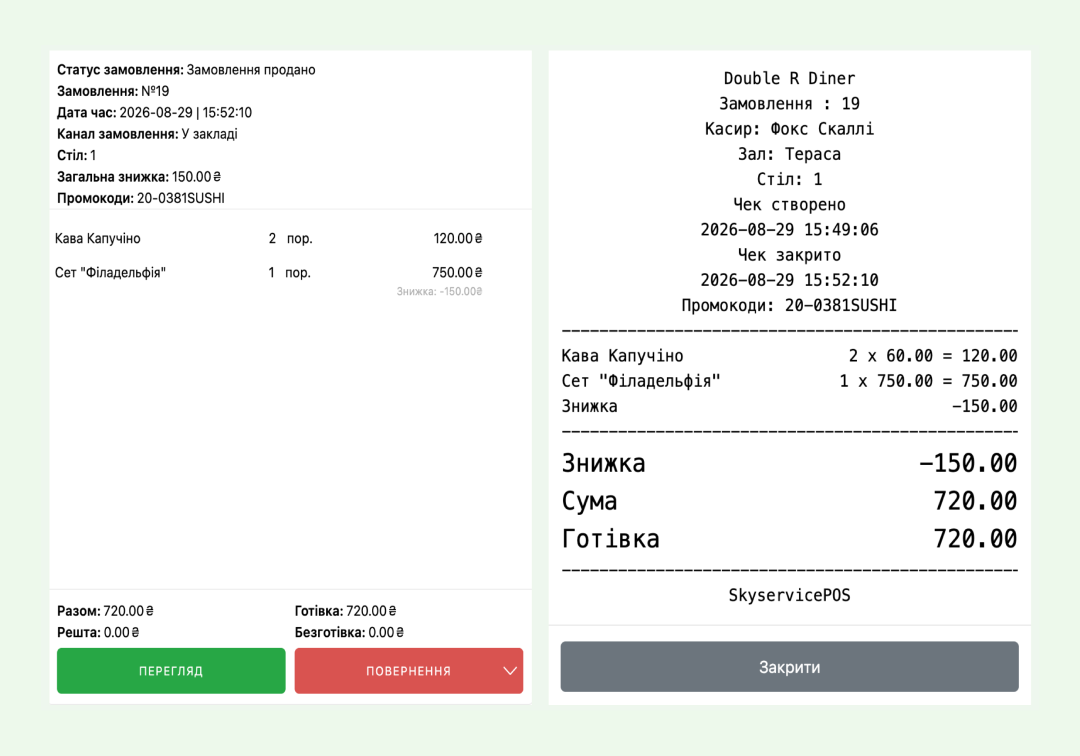
Printing
On checks it is possible to print General promo codes. Batch codes are not printed on the check.
☝🏻We note that promo codes are printed automatically when the conditions are met that were previously added in the promo code settings in the section Print on check. Accordingly for printing promo codes this section must be active in the settings.
- Add items to the cart and conduct sales as usual
- As soon as when selling the conditions for Print on check → Promo code is automatically printed on the sales check
- For example: the condition for printing the promo code – a purchase of at least 1000₴
☝🏻If there are several active General promo codes on the check it is possible to print only one code, even if the conditions for printing all are met. Order of their printing, i.e., which specific code should be printed at the next sale, is configured in the Initial settings.